Working manual
Roles and what each screen needs
Every screen and button is opened by a permission. Roles bundle permissions for a job.
You are reading the manual without signing in. It describes the screens staff use; opening them needs an account, and the access on that account decides which ones appear.
How access is decided
Each person has one role in a company, plus the branches they work in. The role decides which screens and buttons they have; the branches decide whose work they see. A missing menu entry or button means the role does not include it. Ask the owner rather than looking for a way round it.
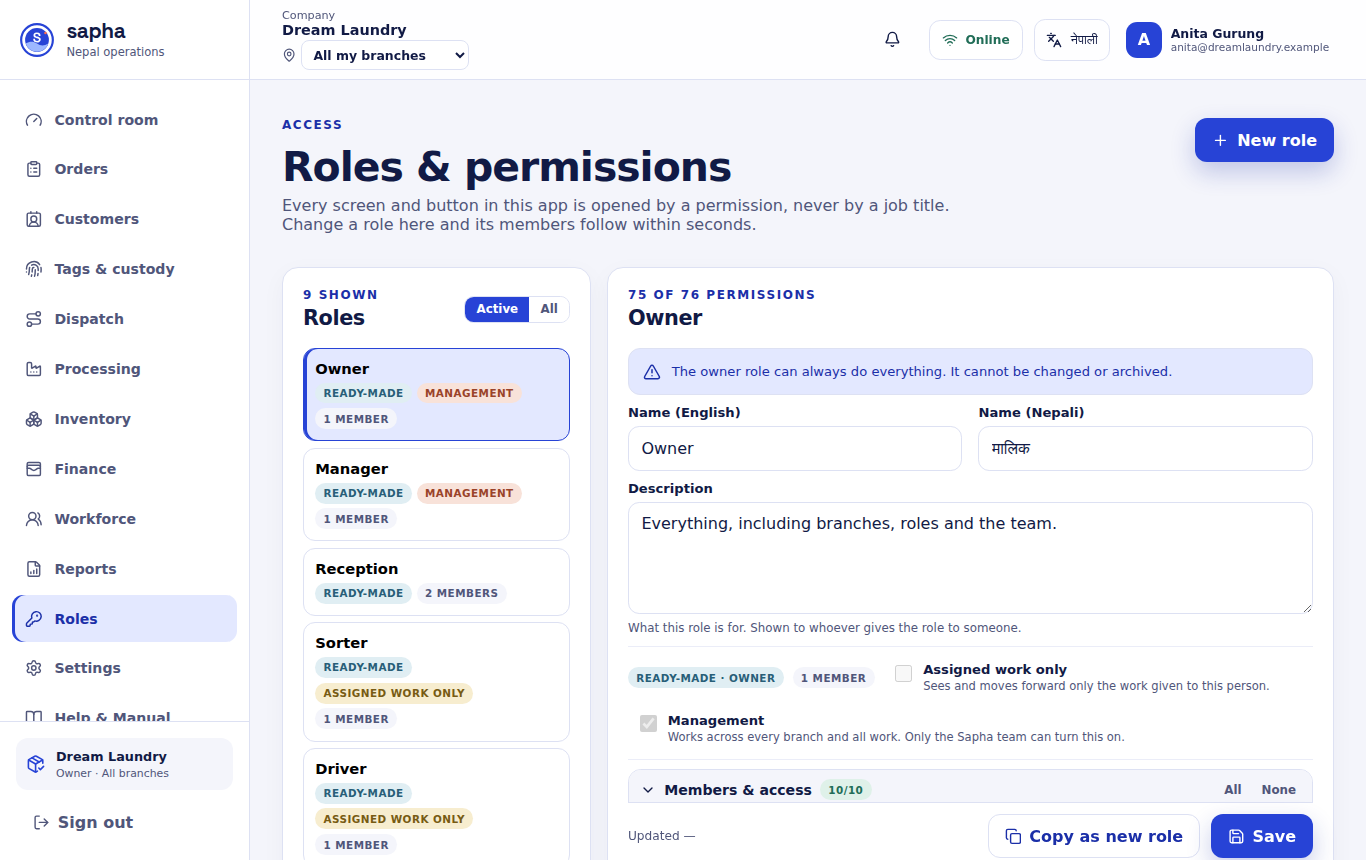
The roles a company starts with
| Role | For |
|---|---|
| Owner | Everything, including branches and roles. At least one active owner always remains. |
| Manager | Running operations and the team, across the branches they cover, without owner-only controls such as creating branches and roles. |
| Reception | Customers, bookings, tags, assigning pickups and deliveries, confirming delivery codes, invoices, payments and the cash close. |
| Sorter | Home visits assigned to them: registering, tagging and sealing at the customer's home. |
| Driver | Pickups and deliveries assigned to them, with their scans and delivery codes. |
| Wash plant | Wash plant intake, washing stages, quality check and stock. |
| Packer | Re-sorting by customer, packing and releasing batches. |
| Finance | Invoices, payments, the ledger, payroll visibility and reports. |
| Human resources | Staff records, payroll drafts and the activity list. |
Sorters and drivers have field roles: they see and move only the work assigned to them.
Changing or adding a role
Create or change a role
- Who can do this
- The company owner.
- What it achieves
- A role that opens exactly the screens a job needs, and nothing more.
Before you start
- You know which tasks the job involves.
Steps
- RequiredOpen Roles.
- Only if it appliesChoose New role, or open a role and choose Copy as new role when the new one is close to it.
- RequiredGive the role a name in English and Nepali, and a description.
- RequiredTick only the functions the job needs.
- RequiredChoose Save.
What should happen next
Everyone holding the role follows the change within seconds. A new role can be chosen when inviting people or editing their access.
If it does not work
- The owner role will not change: it is fixed on purpose.
- Someone still misses a screen after a change: ask them to sign in again.
- A role cannot be archived while people still hold it: give them another role first.
Rules nobody can bend
- Nobody can change their own role, branches or status.
- A company always keeps at least one active owner.
- The driver who sends a delivery code cannot also confirm it.
- History is added to, never erased: scans, payments and changes stay on record with who made them.