Working manual
Branches and your working branch
Who sees which branch, how to switch, what All my branches does, and moving customers and orders between branches.
Who sees which branch
| Person | What they see |
|---|---|
| Works in one branch | Only that branch. There is nothing to choose; the top bar shows the branch name. |
| Works in several branches | Chooses a branch after signing in and sees only that branch. Switches from the branch box in the top bar. |
| Owner or manager | Can also choose All my branches to see every branch they cover together. |
The owner decides which branches each person works in, when inviting them or later with Edit in Settings. A person never sees a branch they are not assigned to.
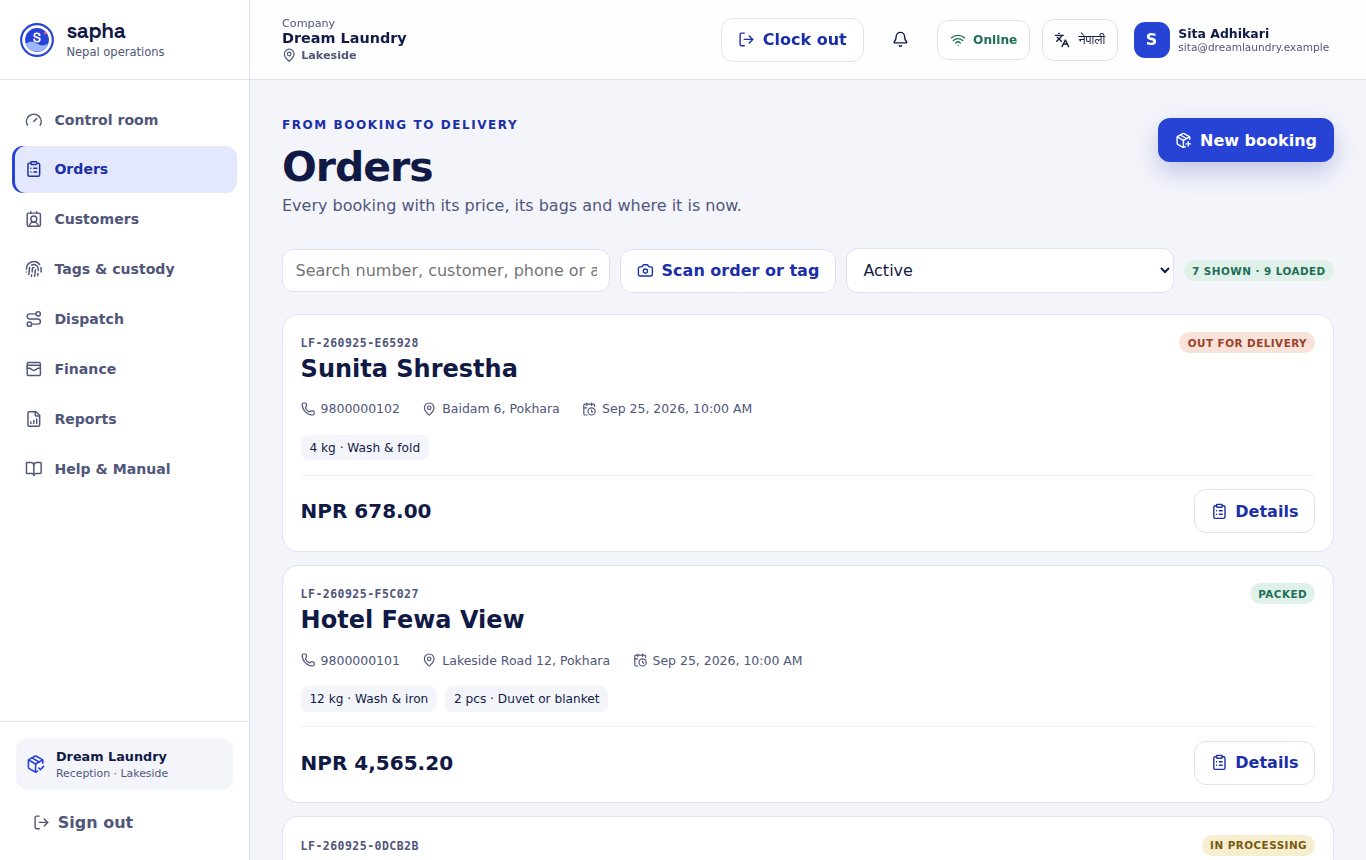

New work always belongs to one branch
When you are looking at All my branches and start something new (a booking, a customer, a batch, a task), Sapha asks which branch it is for, switches to that branch and opens the form there.
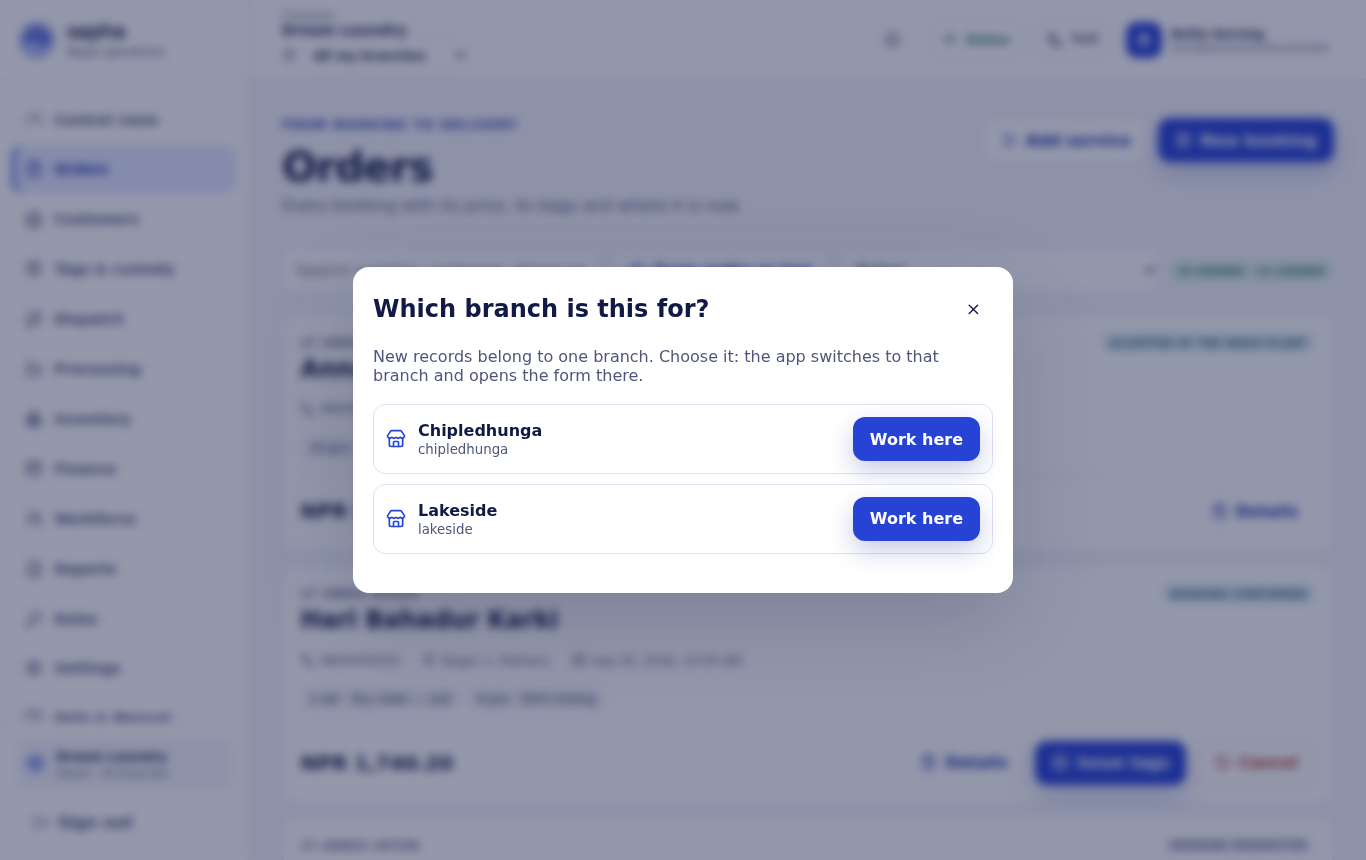
Moving an order to another branch
Move an order to another branch
- Who can do this
- The owner or a manager who covers both branches.
- What it achieves
- The order, with its tags and seals, is handled by the other branch from now on.
Before you start
- The order is not delivered or cancelled.
- No pickup, sorting or delivery task is open on it, it has no invoice, and it is not in an unreleased washing batch.
Steps
- RequiredOpen the order's Details.
- RequiredChoose Move to another branch.
- RequiredChoose the destination branch and write the reason.
- RequiredConfirm.
What should happen next
The order now appears in the destination branch. Its past scans stay in the history of the branch where they happened.
If it does not work
- The button is missing: the order is in one of the situations listed above, or you do not cover both branches.
A customer can be moved in the same way from the Customers screen. The customer and their future orders go to the new branch; past orders stay where they were booked.