Working manual
Invoices and payments
Invoice an order once it is packed, take cash or card at the counter, or let the customer pay with eSewa or Khalti.
Invoicing an order
An order can be invoiced once it is packed; until then it can still be cancelled. Open the order's Details and choose Issue invoice. The invoice takes the prices and tax the order was booked with; nobody can type a different amount. For a counter sale without an order, Finance has Issue manual invoice.
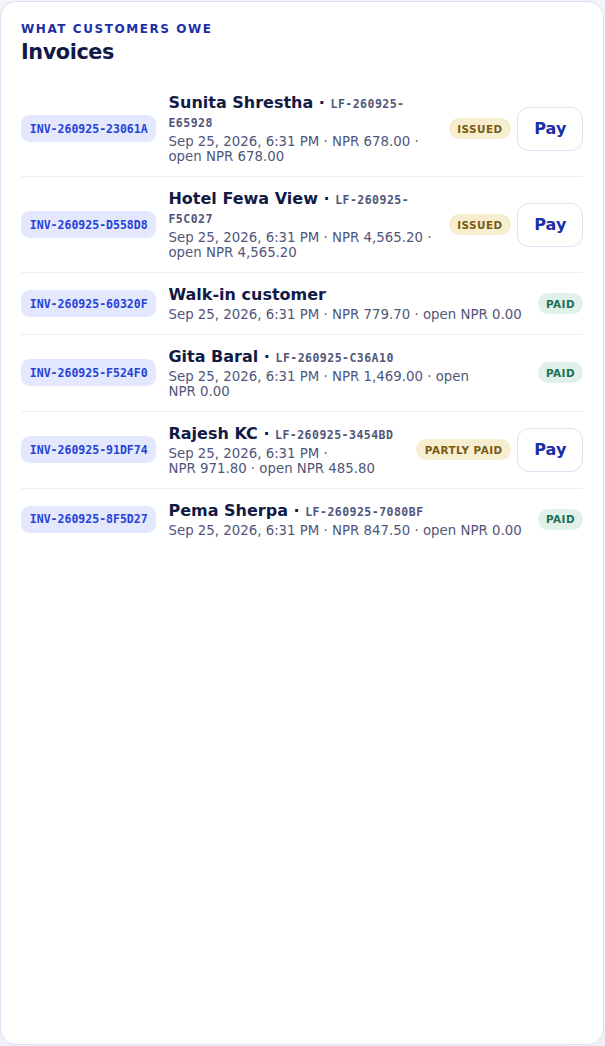
Taking a payment at the counter
Record a payment
- Who can do this
- Reception, finance staff, a manager or the owner.
- What it achieves
- The invoice balance goes down and the money is booked, with a balanced entry in the journal.
Before you start
- The order has an invoice with money still owed.
Steps
- RequiredOpen the order's Details and choose Record payment, or choose Pay next to the invoice in Finance.
- RequiredEnter the amount received. It is filled in with the full balance; change it for a part payment.
- RequiredChoose the method: cash, eSewa, Khalti, bank transfer or card.
- OptionalAdd the reference for anything but cash, such as the eSewa transaction code.
- RequiredChoose Save payment.
What should happen next
The invoice shows Partly paid or Paid. Cash payments count towards the branch's expected cash in the daily cash close.
If it does not work
- Sapha refuses the amount: it is more than the open balance. Payments are never taken above what is owed.
Online payment with eSewa or Khalti
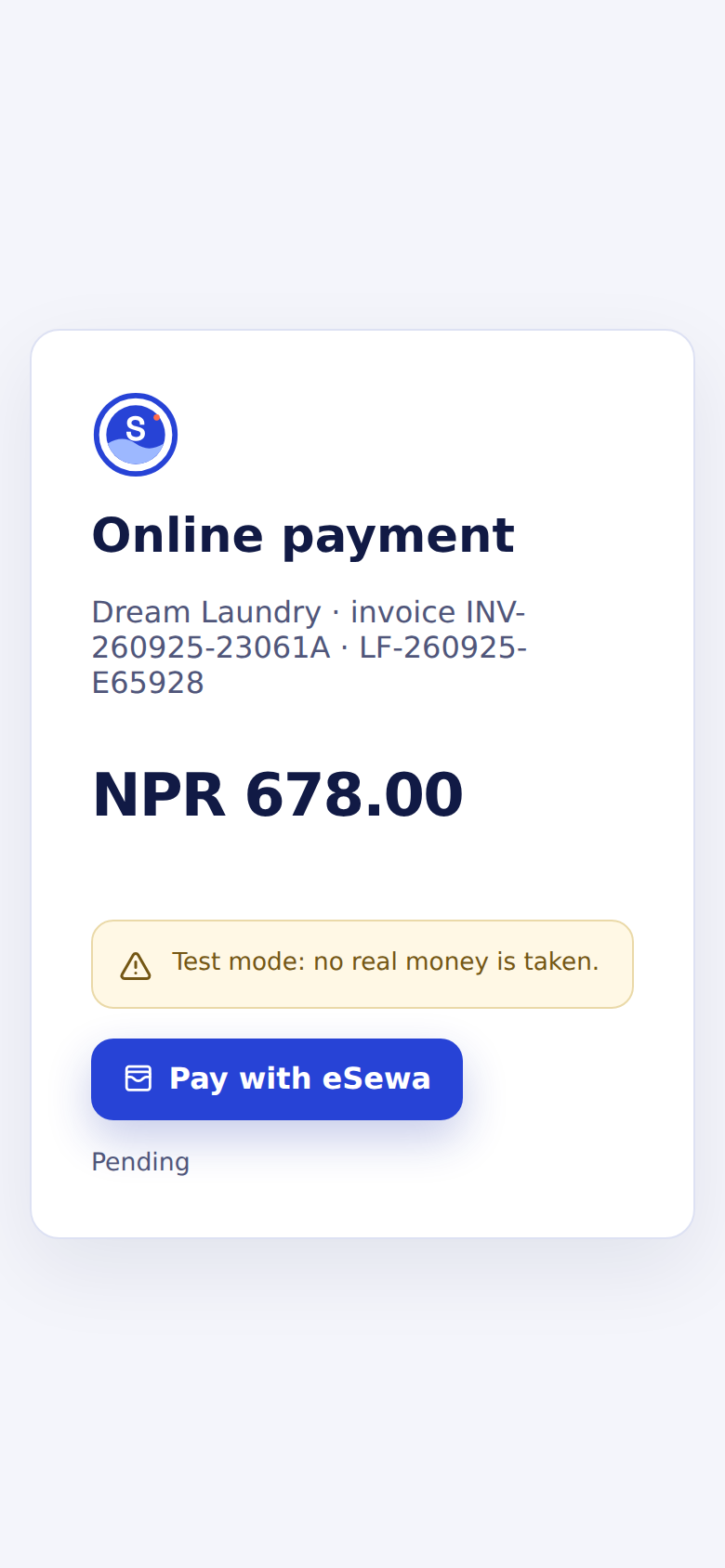
Online payment in the order's window creates a payment request for the open balance and shows it as a QR code. The customer scans it with their phone and pays in eSewa or Khalti. They can also pay from their own tracking page with the Pay button.
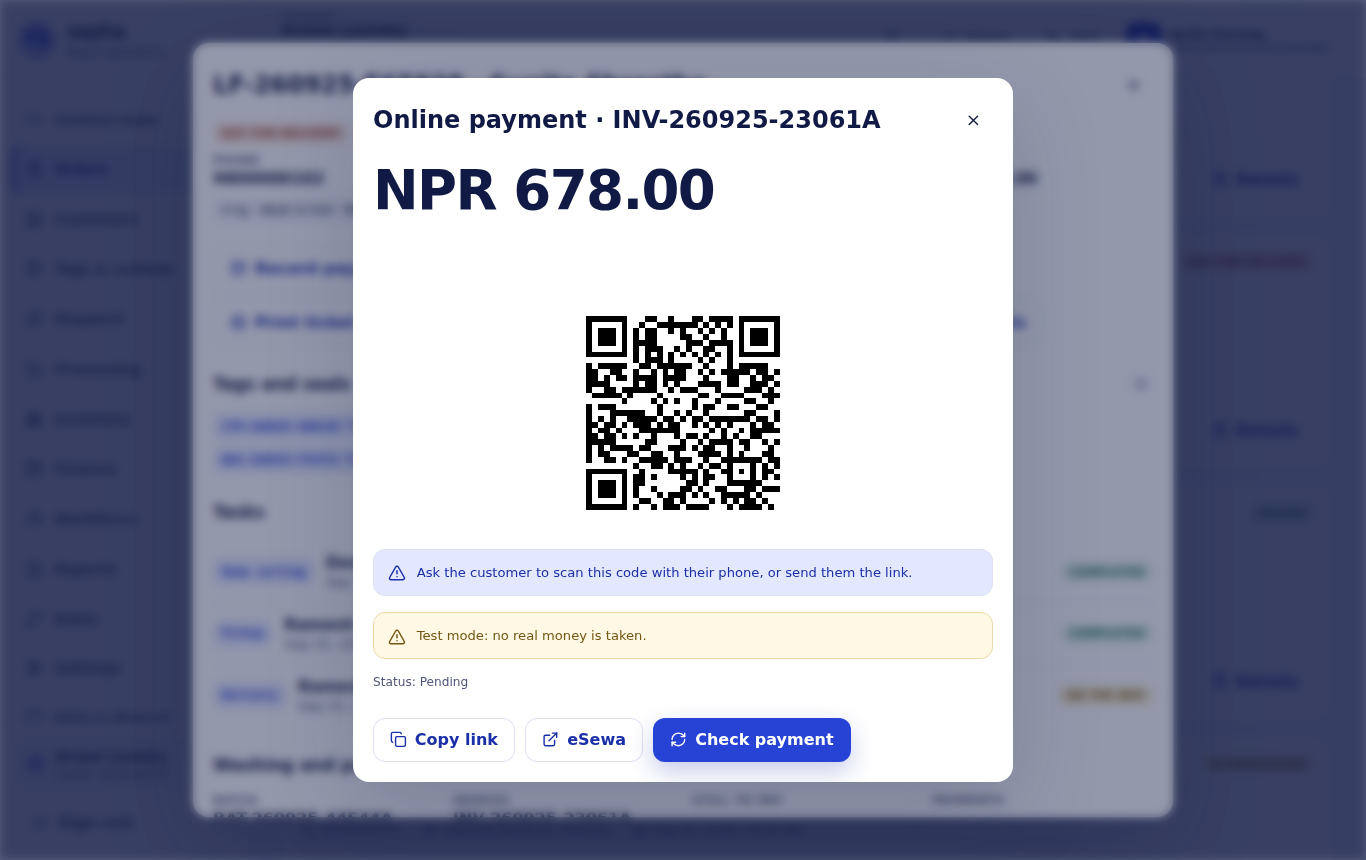
Sapha records the payment only after it asks eSewa or Khalti directly and they confirm the full amount was paid, so a screenshot or a message cannot mark an invoice paid. When the customer comes back to Sapha after paying, or when staff choose Check payment, the payment appears on the invoice with the provider's reference. If part of the invoice was paid at the counter in the meantime, the extra is kept as the customer's credit.
The books check and the journal
Finance shows the money owed, the Books check totals and the journal. Every invoice and payment writes a balanced entry; entries are never edited, and the Books check panel shows that debits equal credits.