Working manual
Customers
Keep each customer once, in the branch that serves them, with their orders in one place.
You are reading the manual without signing in. It describes the screens staff use; opening them needs an account, and the access on that account decides which ones appear.
The customer list
Every customer belongs to one branch, and staff see the customers of the branch they are working in. Search by name, phone number or customer number. Each row shows the branch, how many orders the customer has, and buttons for their orders, a new order, edit, move and archive.
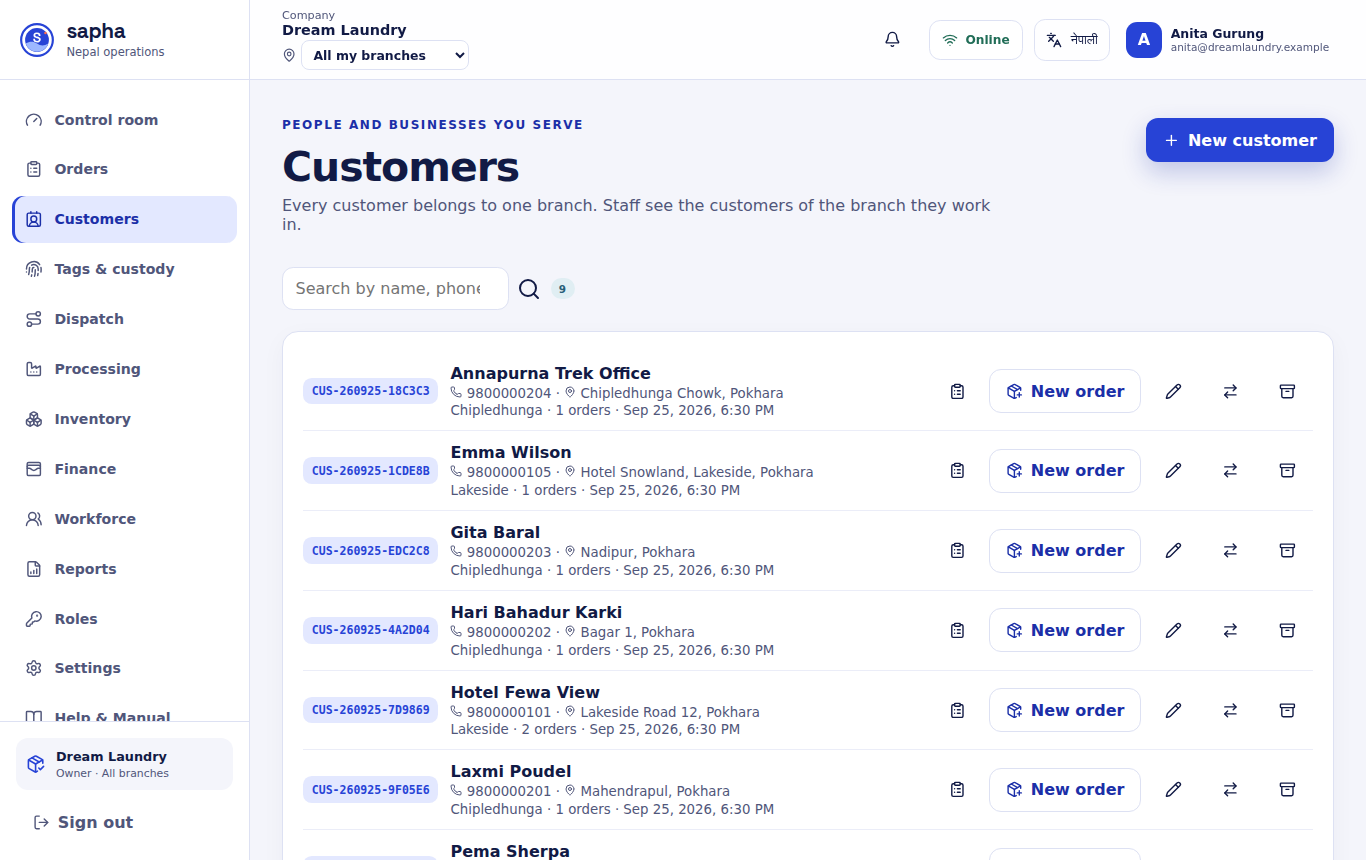
A phone number belongs to one customer per branch, so the same person is not entered twice. A number written with or without the country code counts as the same number.
Adding a customer
Add a customer
- Who can do this
- Reception, a manager or the owner.
- What it achieves
- A customer saved once, ready to book for, with notes every colleague sees.
Before you start
- You are working in the branch that will serve the customer, or you choose that branch in the form.
Steps
- RequiredOpen Customers and choose New customer.
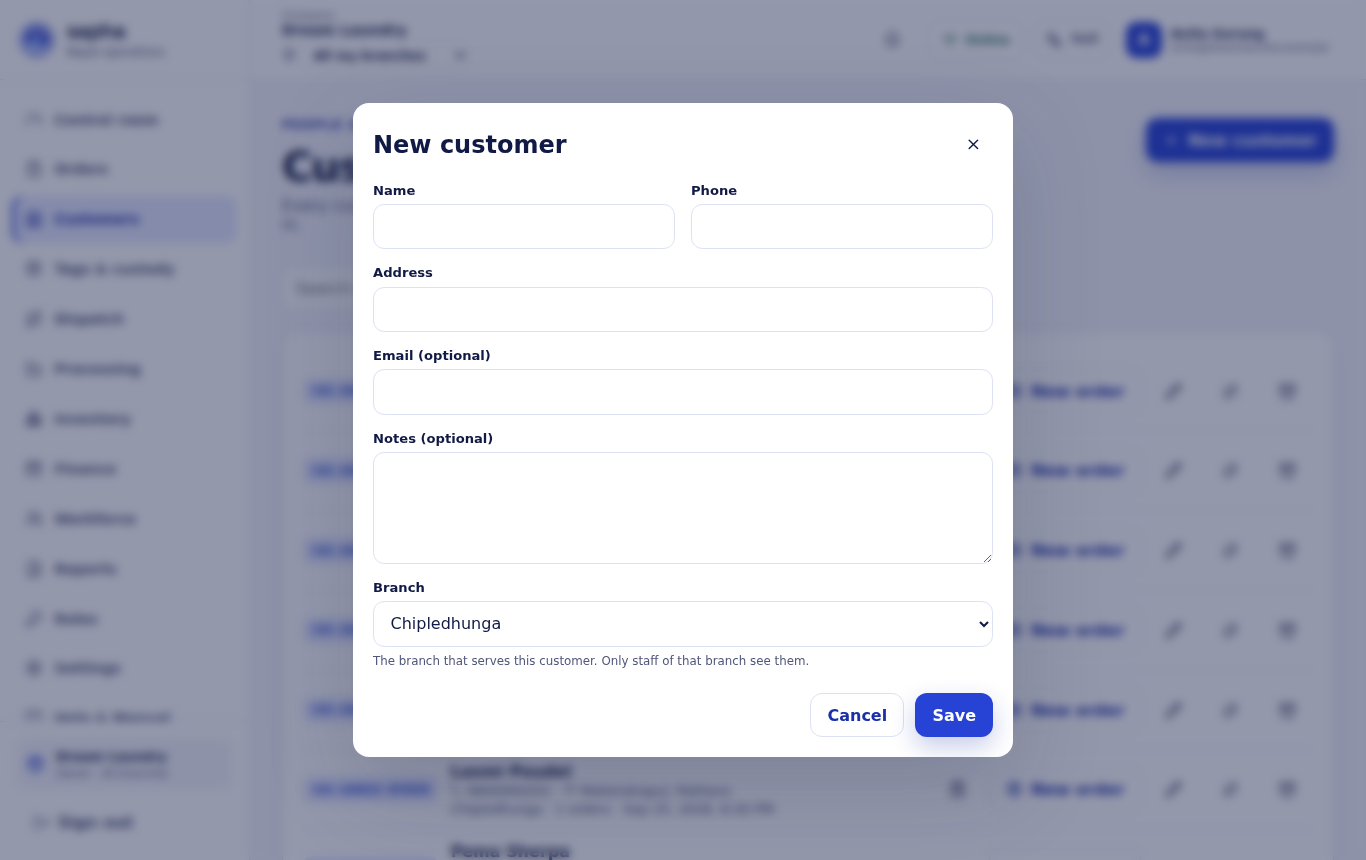
- RequiredEnter the name, phone number and address.
- OptionalAdd an email address if the customer wants updates by email.
- OptionalWrite notes the team should know, such as delivery days or where to ring.
- Only if it appliesWhen looking at several branches, choose the branch that serves the customer.
- RequiredChoose Save.
What should happen next
The customer gets a customer number and appears in the list of their branch.
If it does not work
- Sapha says the phone number is already used: that customer already exists in this branch. Search for the number instead.
You can also save a customer while booking: tick Save as customer of this branch in the booking form.
A customer's orders, edits, moves and archiving
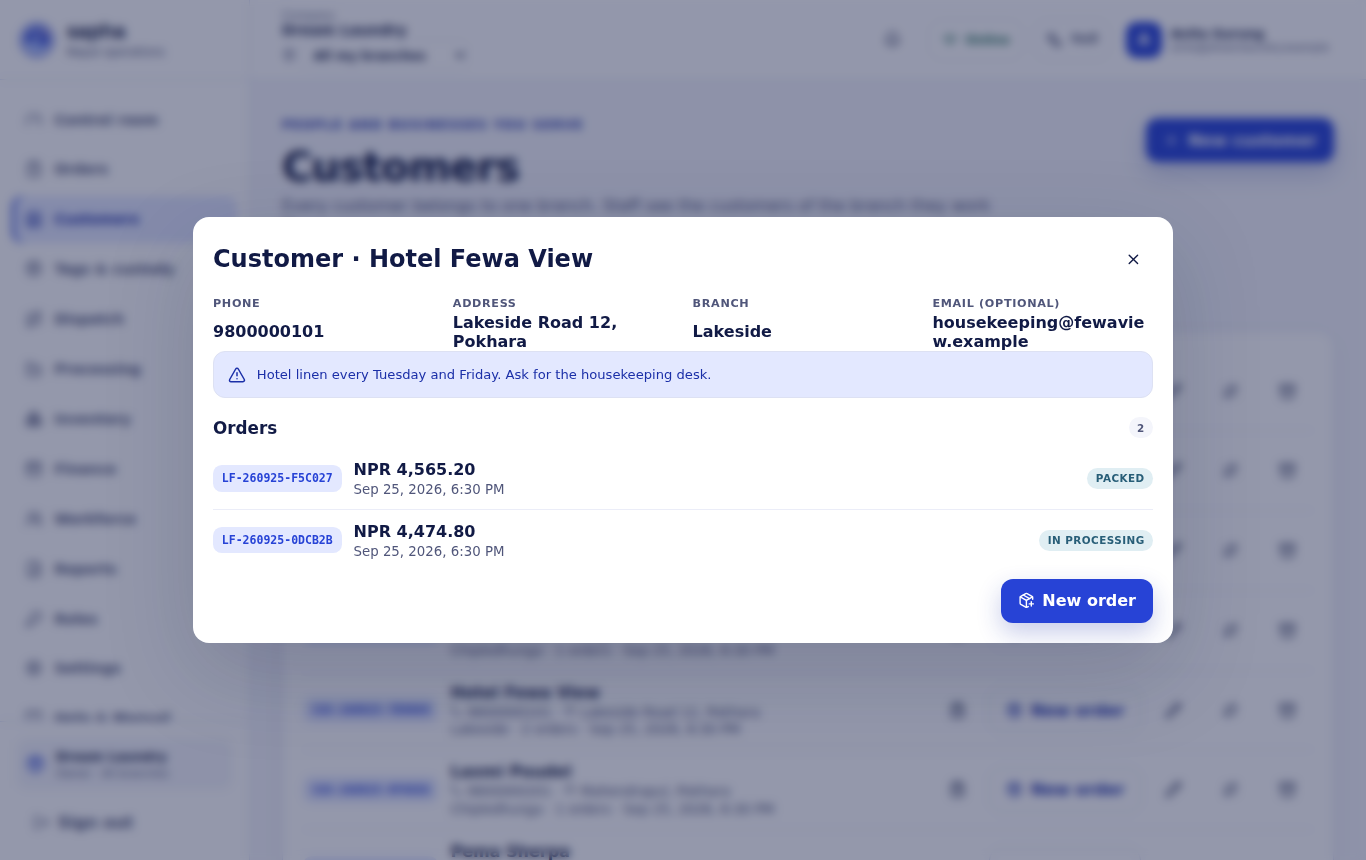
- Orders (the list icon) opens the customer's window with every order; New order there starts a booking already filled in.
- Edit (the pencil) changes the name, phone, address, email or notes. Existing orders keep the details they were booked with.
- Move (the arrows) sends the customer to another branch; owners and managers only. Future orders go to the new branch.
- Archive (the box) hides a customer who no longer uses the laundry. Their orders stay.