Working manual
Tags, seals and custody
Register an order's tags and seals, record each handover with a scan, and deal with exceptions.
Registering tags and seals
Register an order's tags and seals
- Who can do this
- Reception, or the sorter assigned to the home visit.
- What it achieves
- Every item and bag of the order has its own code that can be scanned and printed.
Before you start
- The order's tags have been issued (status Tags printed) and nothing is registered for it yet.
Steps
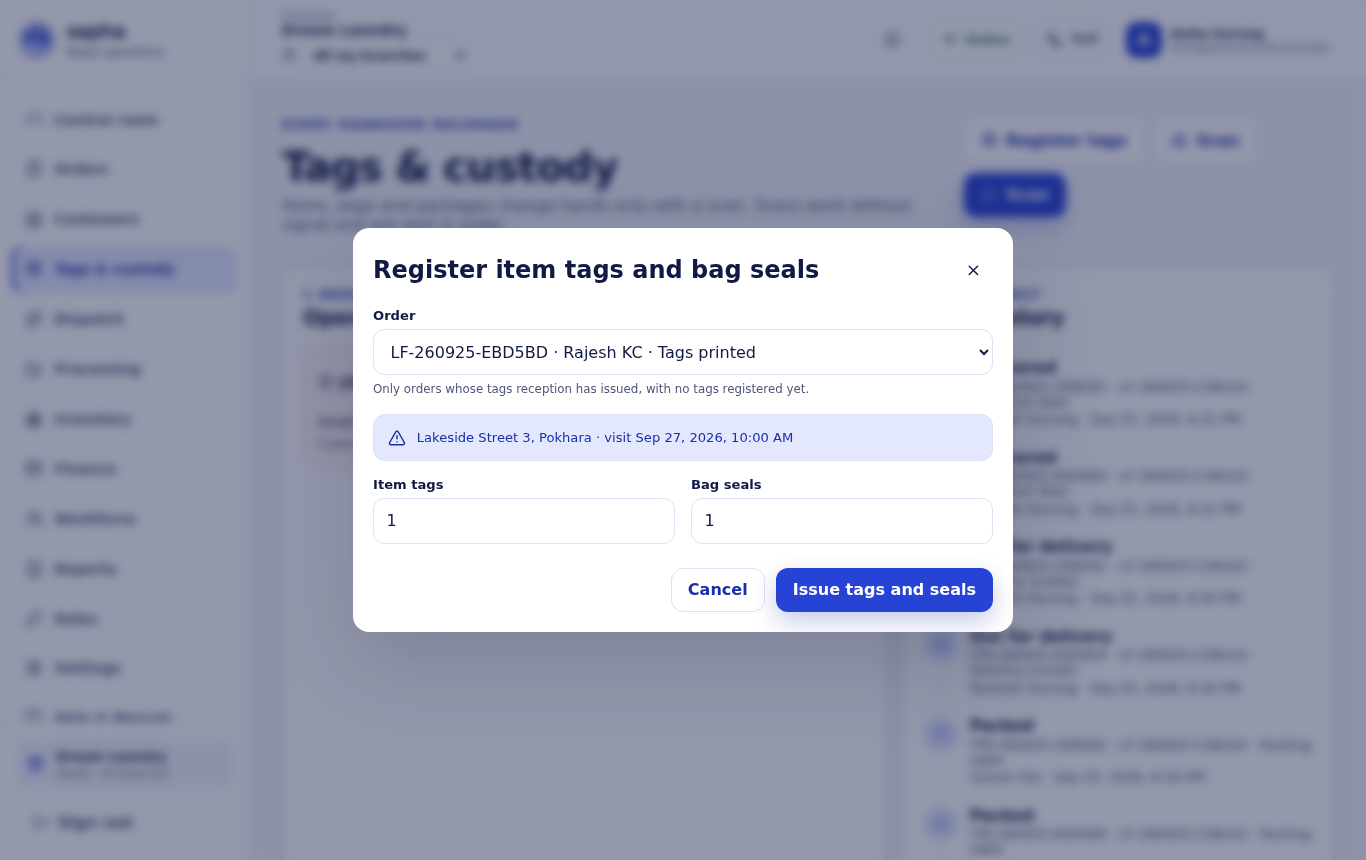
- RequiredOpen Tags & custody and choose Register tags.
- RequiredChoose the order.
- RequiredEnter how many item tags and how many bag seals it needs.
- RequiredChoose Issue tags and seals.
What should happen next
Each tag and seal gets a code (item tags start with ITM, bag seals with BAG). Print them from the order window with Print labels.
If it does not work
- The order is not in the list: its tags are not issued yet, or it is already registered.
Recording each handover
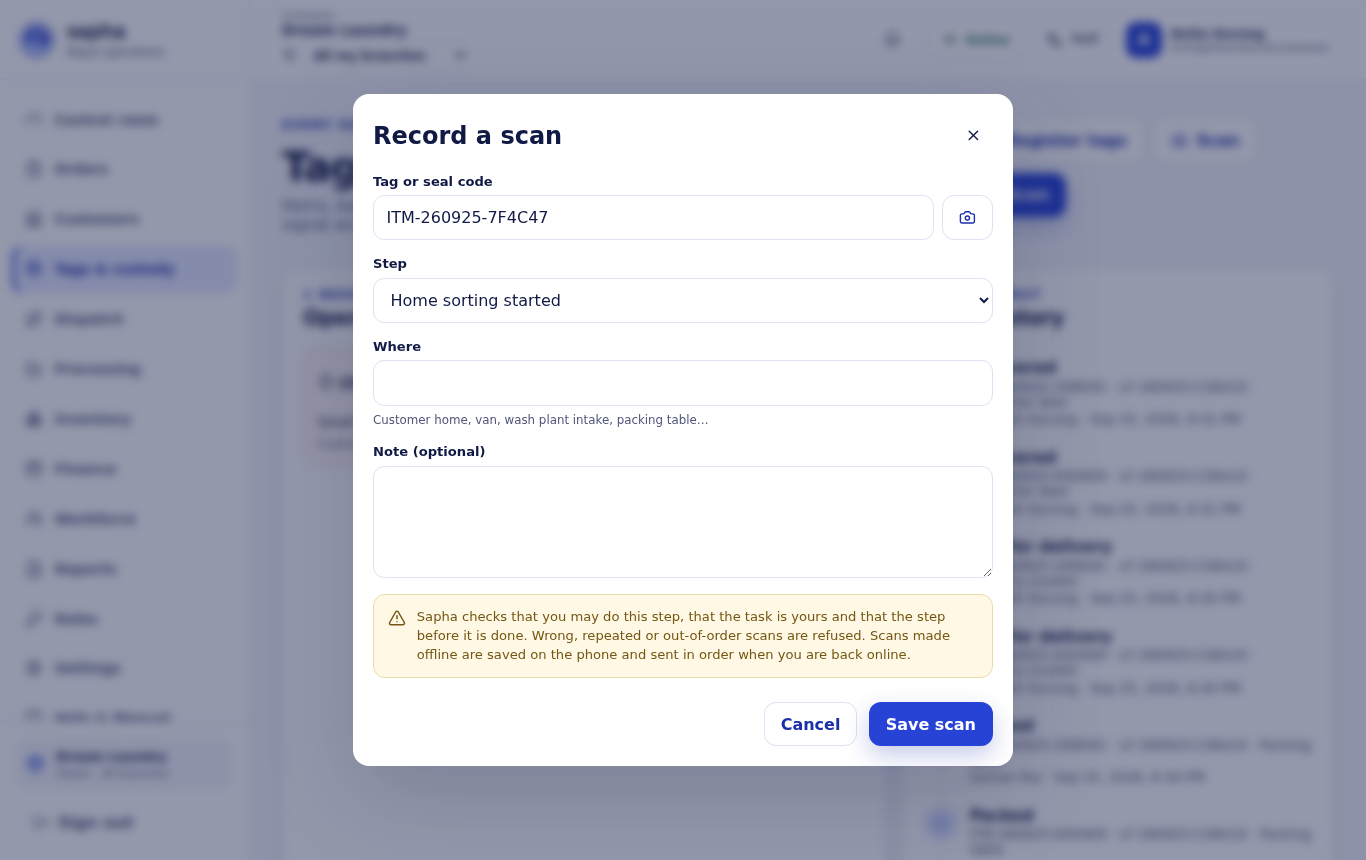
Every time a tag or seal changes hands it is scanned with the step it has reached and where it happened. A scan is refused if it is out of order, a repeat, or not your role's step, so the record stays true. Scans made without a connection are kept on the device and sent in order later.
| Tag or seal | Steps, in order |
|---|---|
| Item tag | Home sort started → Items sorted and tagged → Picked up → Facility intake accepted → Customer re-sorted → Quality checked → Packed → Out for delivery → Delivered |
| Bag seal | Bag sealed → Picked up → Seal scanned at the wash plant → Accepted at the wash plant |
Exceptions: damage, stains, missing items
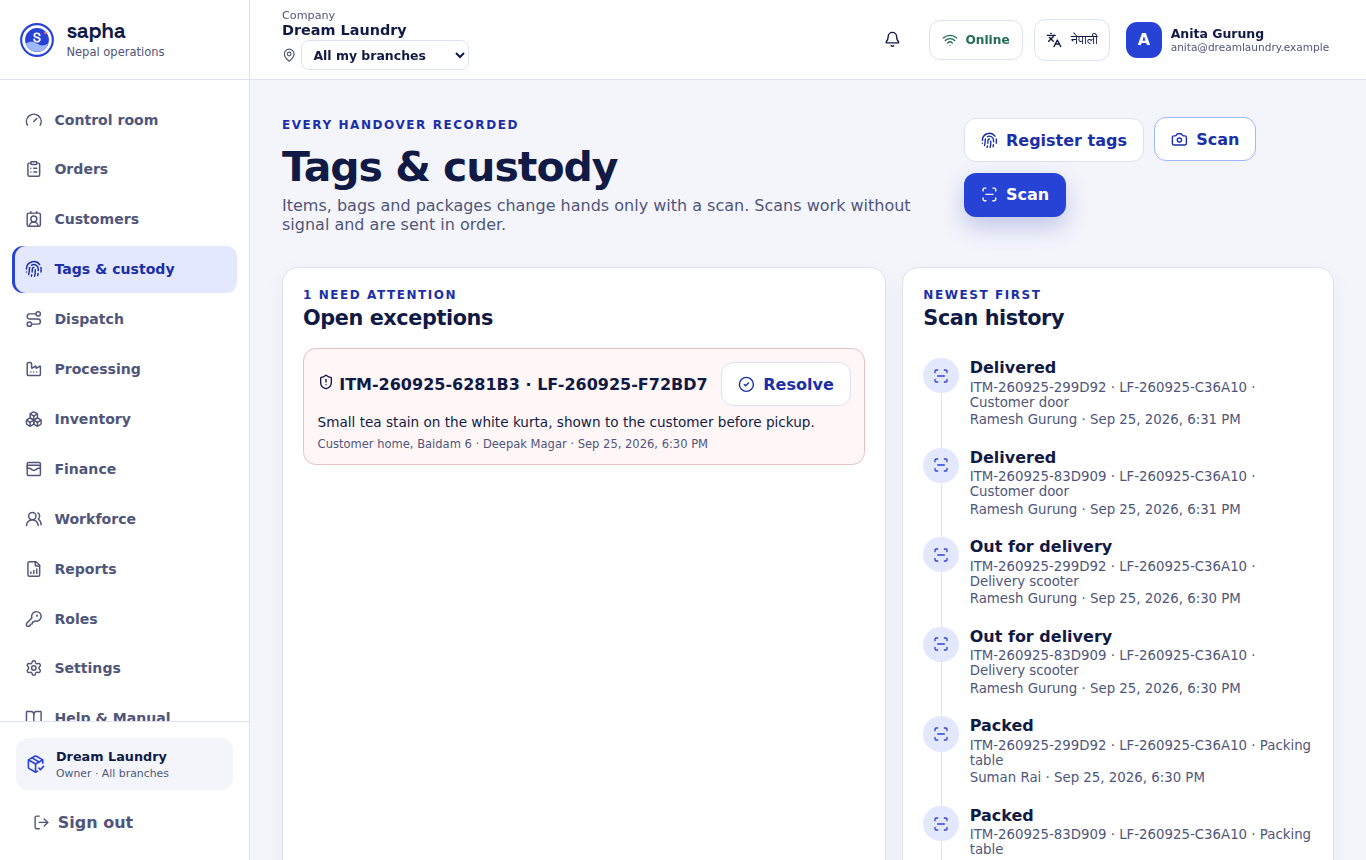
When something is wrong with an item (a stain, a tear, a missing piece), record an exception on its tag with a note, as Deepak did for a tea stain on Sunita's kurta before pickup. The exception does not move the item on. Reception, a manager or the owner then chooses Resolve and writes what was decided.