Working manual
Orders from booking to delivery
Book an order, confirm it, follow its status, and read everything about it in one window.
The journey of an order
Choose any step to read how it works.
Choose a stage to open the article that explains it.
- New bookingReception books it
- Awaiting confirmationStatus filter
- ConfirmedTags can be issued
- Register tagsTags & custody
- Print labelsOne per item and bag
- Home sortingSorter at the customer
- PickupDriver scans the seals
- Facility intakeSeals and items accepted
- In processingWashing batch
- PackedRe-sorted, checked, packed
- Invoice and paymentCounter or online
- Out for deliveryDriver on the way
- Delivery codeConfirmed by someone else
- DeliveredStatus filter
Booking an order
Book an order
- Who can do this
- Reception, a manager or the owner.
- What it achieves
- An order with the customer, visit time and priced services, waiting for confirmation.
Before you start
- The branch has its services and prices set up.
Steps
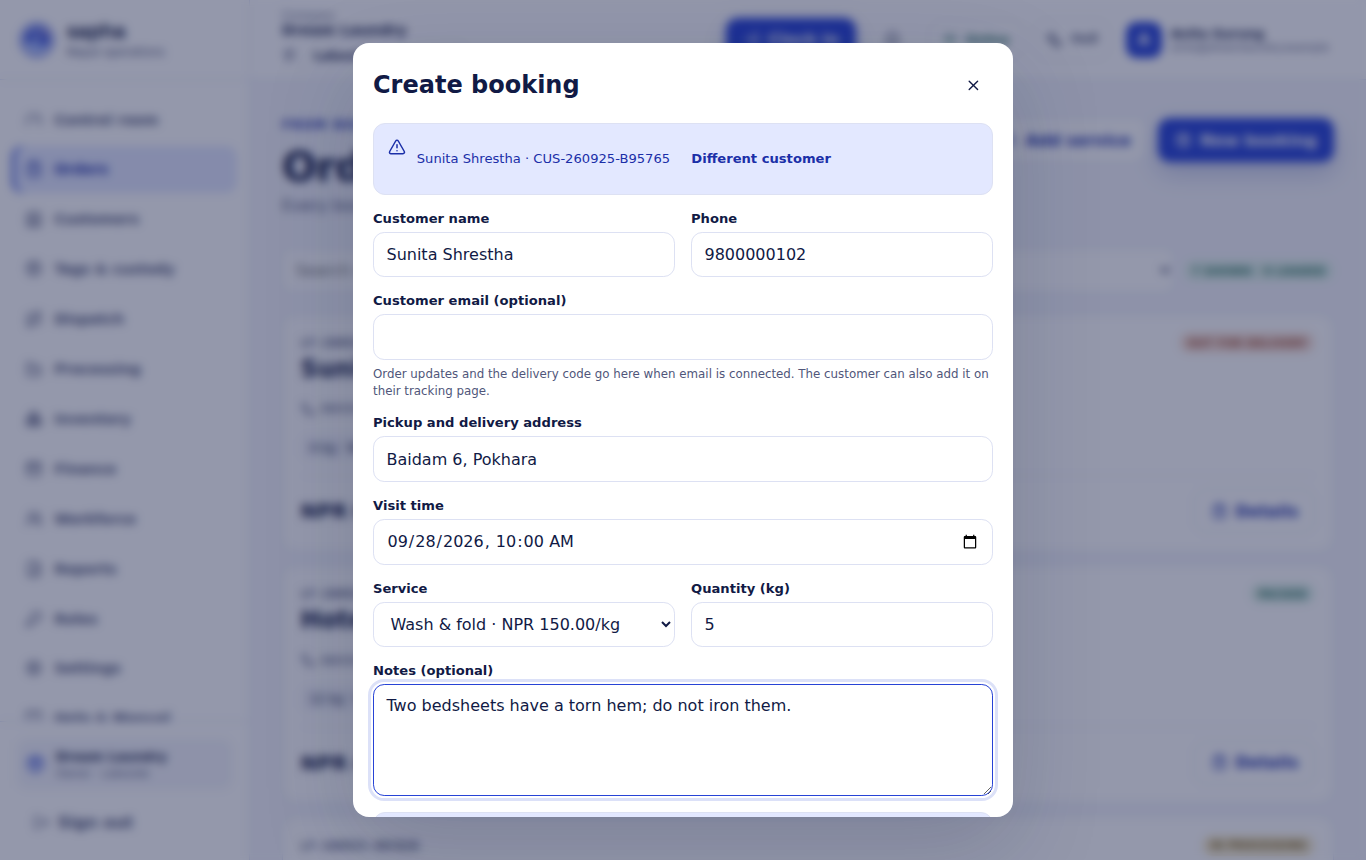
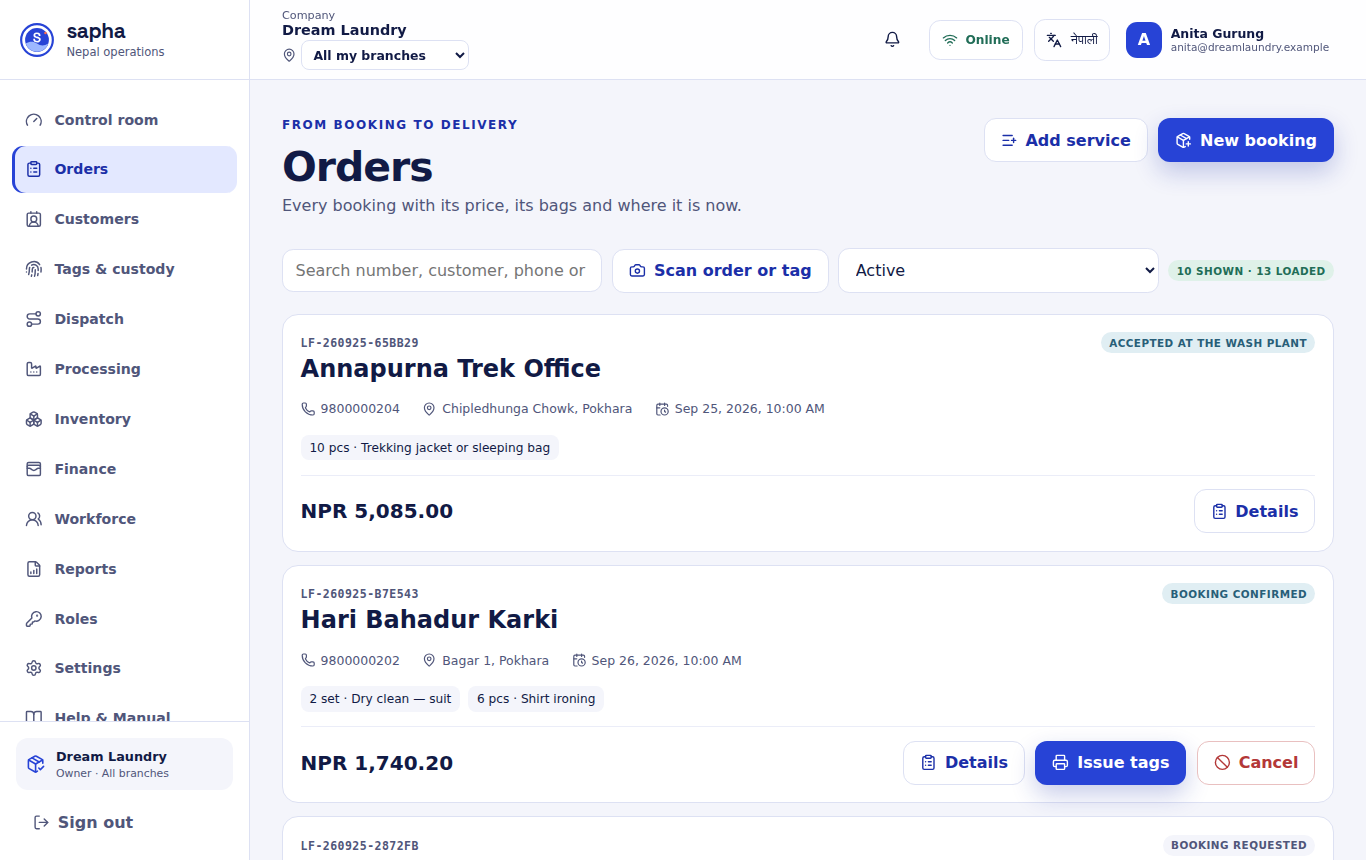
- RequiredOpen Orders and choose New booking. If you are looking at several branches, choose the branch first.
- RequiredType part of the customer's name or phone number and choose them from the list. For someone new, type their name and phone instead.
- OptionalFor someone new, tick Save as customer of this branch to keep them for next time.
- RequiredCheck the pickup and delivery address and choose the visit time.
- RequiredChoose the service and the quantity.
- OptionalAdd the customer's email for updates, and notes for the team.
- RequiredChoose Create booking.
What should happen next
The order appears with the status Booking requested. The price and tax come from the service list and cannot be changed on the order.
If it does not work
- The customer is not found: check that you are working in the customer's branch.
- No services to choose: add them first with Add service on the Orders screen.
Next, reception confirms the booking (Confirm on the order card) and issues its tags (Issue tags). Until the order is packed it can still be cancelled with a reason.
Order statuses
| Status | What it means |
|---|---|
| Booking requested | Booked, not yet confirmed by reception. |
| Booking confirmed | Confirmed; tags can be issued. |
| Tags printed | Reception issued the tags; they are registered in Tags & custody. |
| Home sorting assigned, Home sorting started | A sorter is visiting the customer to count, tag and seal the items. |
| Items sorted and tagged, Bag sealed, Pickup ready | Every item is tagged and every bag sealed; the order waits for pickup. |
| Driver assigned, Picked up | A driver has the order and scanned it on collection. |
| Seal scanned at the wash plant, Accepted at the wash plant | The wash plant checked the seals and accepted the items. |
| In processing | The order is in a washing batch. |
| Re-sorted by customer, Quality checked, Packed | Items are sorted back by customer, checked and packed. |
| Out for delivery | The driver has it on the way. |
| Delivery code verified, Delivered | The customer's delivery code was confirmed and the items handed over. |
| Cancelled | Stopped with a recorded reason. |
An order moves on only when all of its tags and seals have been scanned for that step, so one scanned item cannot move a whole order.
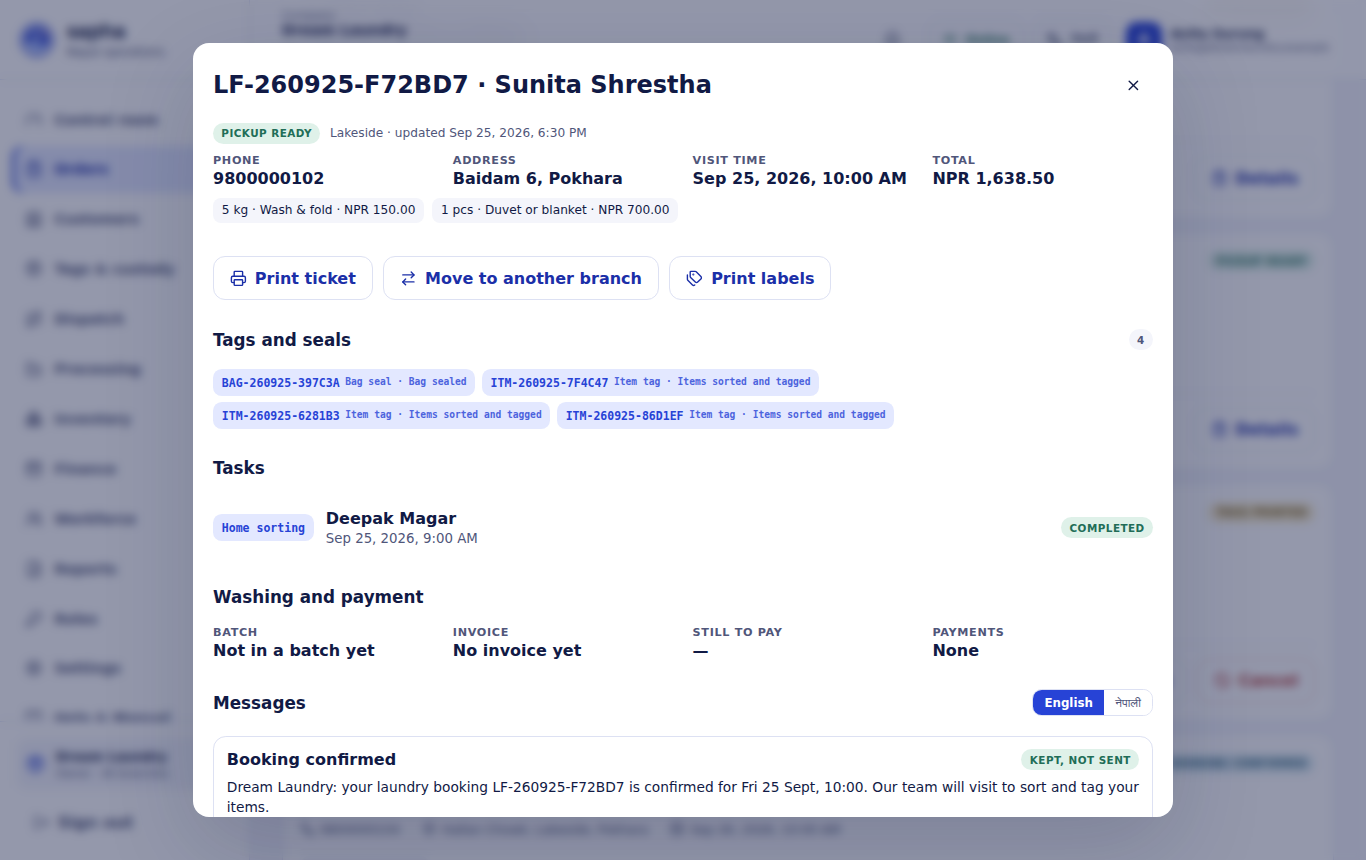
Everything about one order
Details on an order card opens its window: contact and visit, the services and total, buttons for the next step, the tags and seals with their last scan, who was assigned to sort, pick up and deliver, the washing batch, the invoice and payments, and every message sent to the customer, in English or Nepali.