Working manual
Setting up your company
The owner's first day: branches, services and prices, inviting the team, and the company settings.
What to set up, in order
- Branches: every shop, counter or plant that takes or processes work.
- Services and prices for each branch: what customers can book, its unit and price.
- The team: invite each person with the role that matches their job and the branches they work in.
- Company settings: the language of customer messages, and a look at which outside services are connected.
A new company starts with its owner only. The Sapha team creates the company and invites its first owner; from then on the owner runs everything described here.
Branches
Add a branch
- Who can do this
- The company owner.
- What it achieves
- A new branch that staff can be assigned to and that takes its own orders, customers and cash.
Before you start
- You are signed in as the owner, working in All my branches or any branch.
Steps
- RequiredOpen Settings and choose New branch.
- RequiredEnter a short branch code (small letters, such as lakeside) and the branch name. The code cannot be changed later.
- OptionalAdd the address and phone number. They are printed on customer tickets and shown on the customer's tracking page.
- RequiredChoose Create branch.
What should happen next
The branch appears in the Branches list and in the branch box of everyone who works there.
If it does not work
- The code is refused: use 2 to 32 small letters, digits, hyphens or underscores.
- To change the name, address or phone later, use the pencil next to the branch.
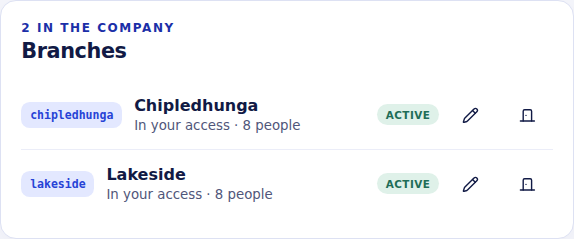
Closing a branch stops new work there and removes it from everyone's branch box; its history stays. Sapha refuses to close a branch that still has open orders, the company's last open branch, or a branch that is the only branch of some of its staff: move the work or the people first. A closed branch can be reopened.
Services and prices
Add a priced service
- Who can do this
- The owner or a manager.
- What it achieves
- A service that reception can book, with a price the order cannot change.
Before you start
- You are working in the branch the service is for. Each branch keeps its own price list.
Steps
- RequiredOpen Orders and choose Add service.
- RequiredEnter the service name, and a Nepali name if you want one on Nepali screens.
- RequiredChoose the unit (per kilogram, per piece, per pair or per set), the rate in rupees and the tax rate.
- RequiredChoose Add service.
What should happen next
The service appears in the booking form of that branch. Every order keeps the price and tax that applied when it was booked.
If it does not work
- The service is missing when booking: check that you are working in the branch the service was added to.
Dream Laundry's list, for example: Wash & fold and Wash & iron by the kilogram, Shirt ironing by the piece, Dry clean for a suit set, Duvet or blanket, and Trekking jacket or sleeping bag for the rental shops around Lakeside.
Inviting the team
Invite a workspace member
- Who can do this
- The owner, or a manager for the branches they manage.
- What it achieves
- A person who can sign in and work with exactly the role and branches you chose.
Before you start
- You know the person's email address, the role that fits their job and the branches they work in.
Steps
- RequiredOpen Settings and choose Invite member.
- RequiredEnter the person's name and email address.
- RequiredChoose their role. The Roles article lists what each role can do.
- RequiredTick the branches they work in. A person with two or more branches chooses one each time they start work.
- RequiredChoose Create invitation, then copy the invitation link and send it to them yourself, for example by message.
What should happen next
The invitation appears under Invitations as pending until the person accepts it. It expires after seven days.
If it does not work
- They never received anything: send them the link yourself. The copy button beside a pending invitation copies it again.
- The link expired: create a new invitation for the same person. Revoke any old one that is still listed.
- The person already works for another company: the Sapha team approves the extra company before they can join yours.
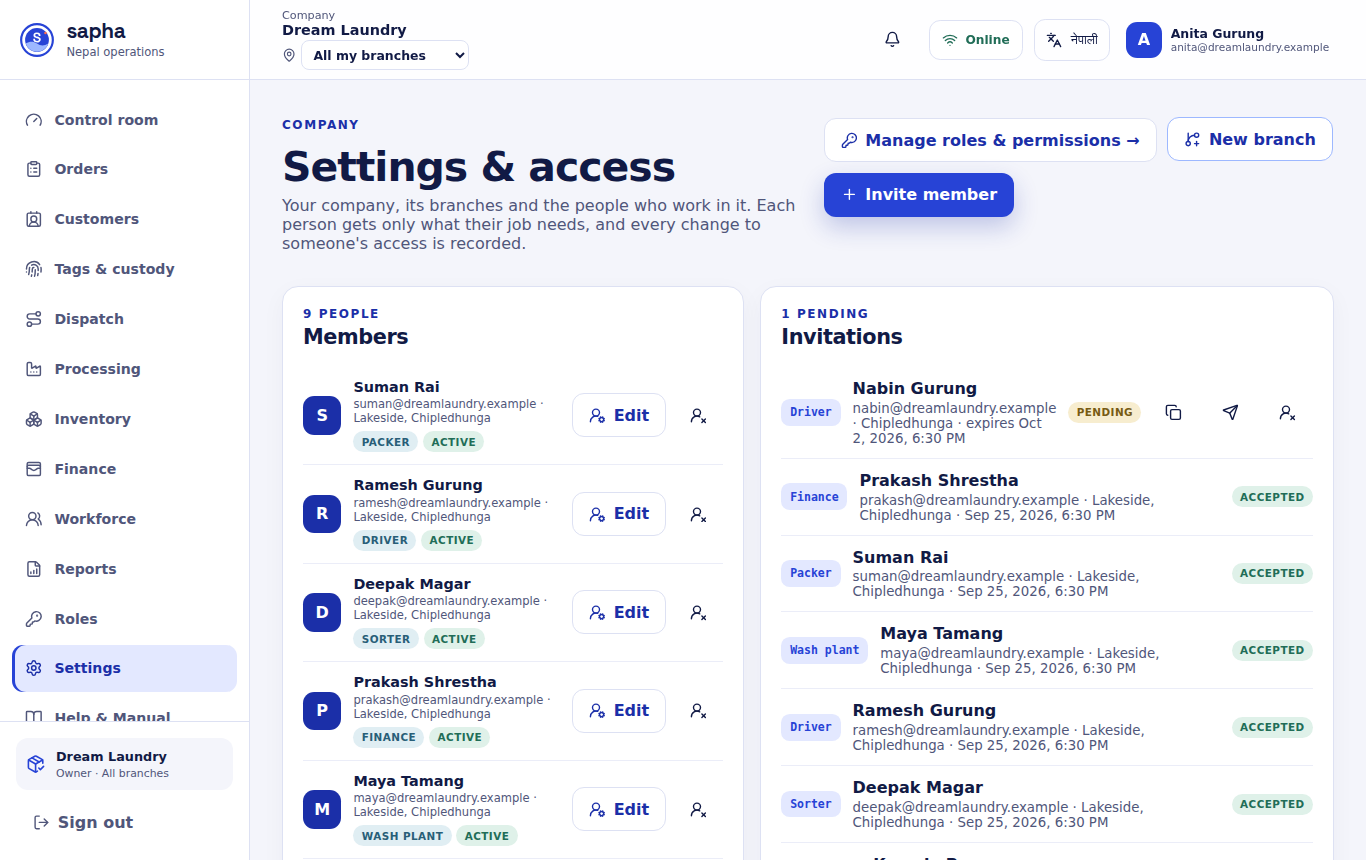
To change someone's role or branches later, choose Edit next to them in Members. To stop someone's access, use the remove button; their history stays.
Company settings and connected services
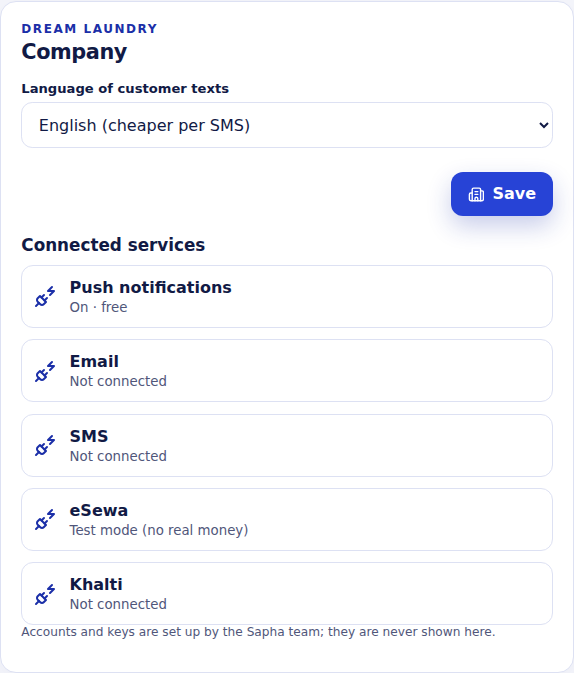
Language of customer texts decides whether order updates to customers go out in English or Nepali. Connected services shows which outside services the company can use: push notifications, email, SMS, eSewa and Khalti. The accounts and keys behind them are set up by the Sapha team and are never shown on screen.