Working manual
Labels, tickets and scanning
Print item labels and customer tickets, and scan them with a phone camera or a handheld scanner.
Printing item labels
Once an order's tags are registered, Print labels in its window prints one label per item tag and bag seal. Each label carries a QR code, the code in words, the order number, the customer and the branch.
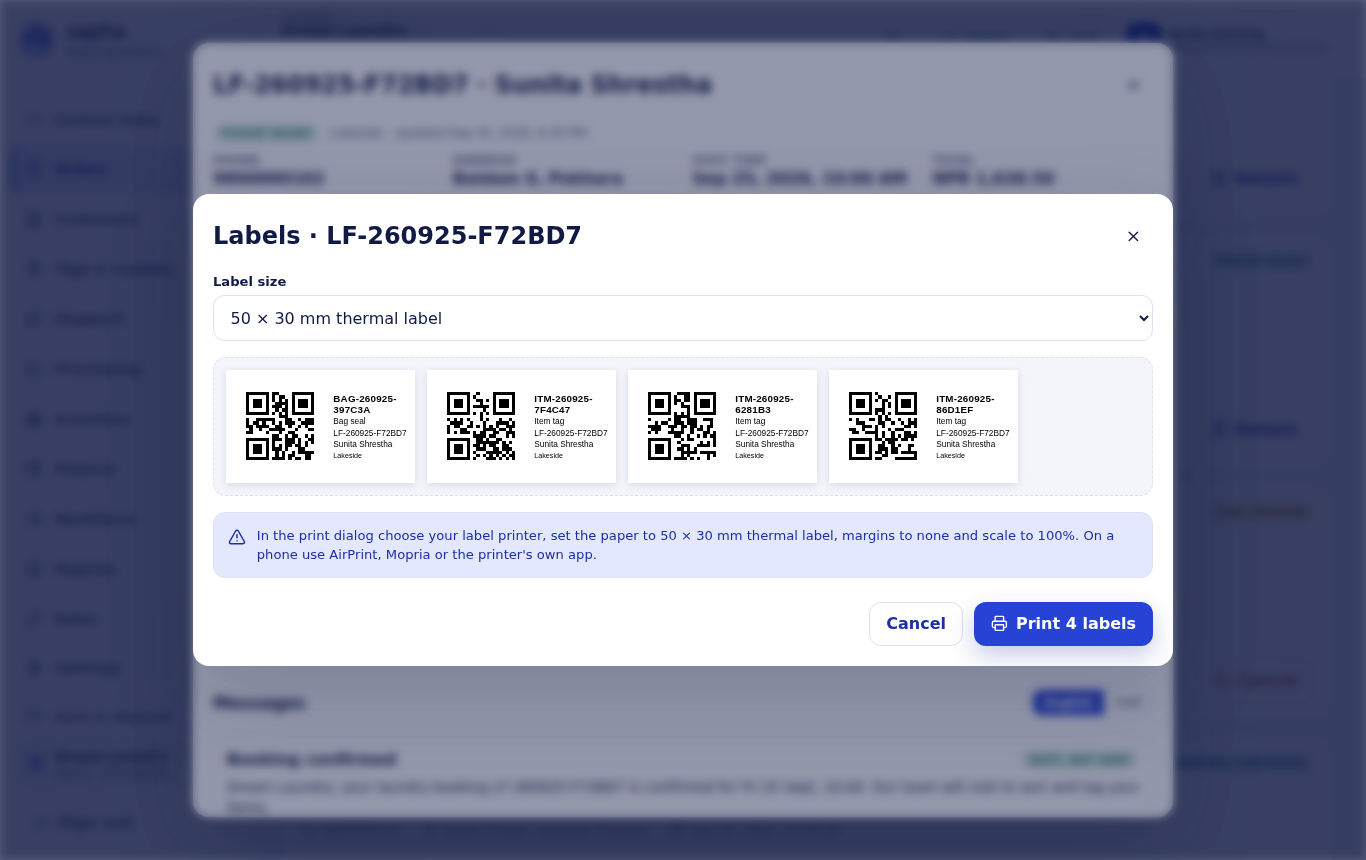
| Label size | Use it for |
|---|---|
| 50 × 30 mm, 40 × 30 mm, 58 × 40 mm | Small thermal label printers for tags on clothes and bags. |
| 100 × 50 mm | Larger shipping labels, for sealed bags and packages. |
| A4 sheet, 24 labels | An ordinary office printer with A4 label sheets. |
The customer's ticket
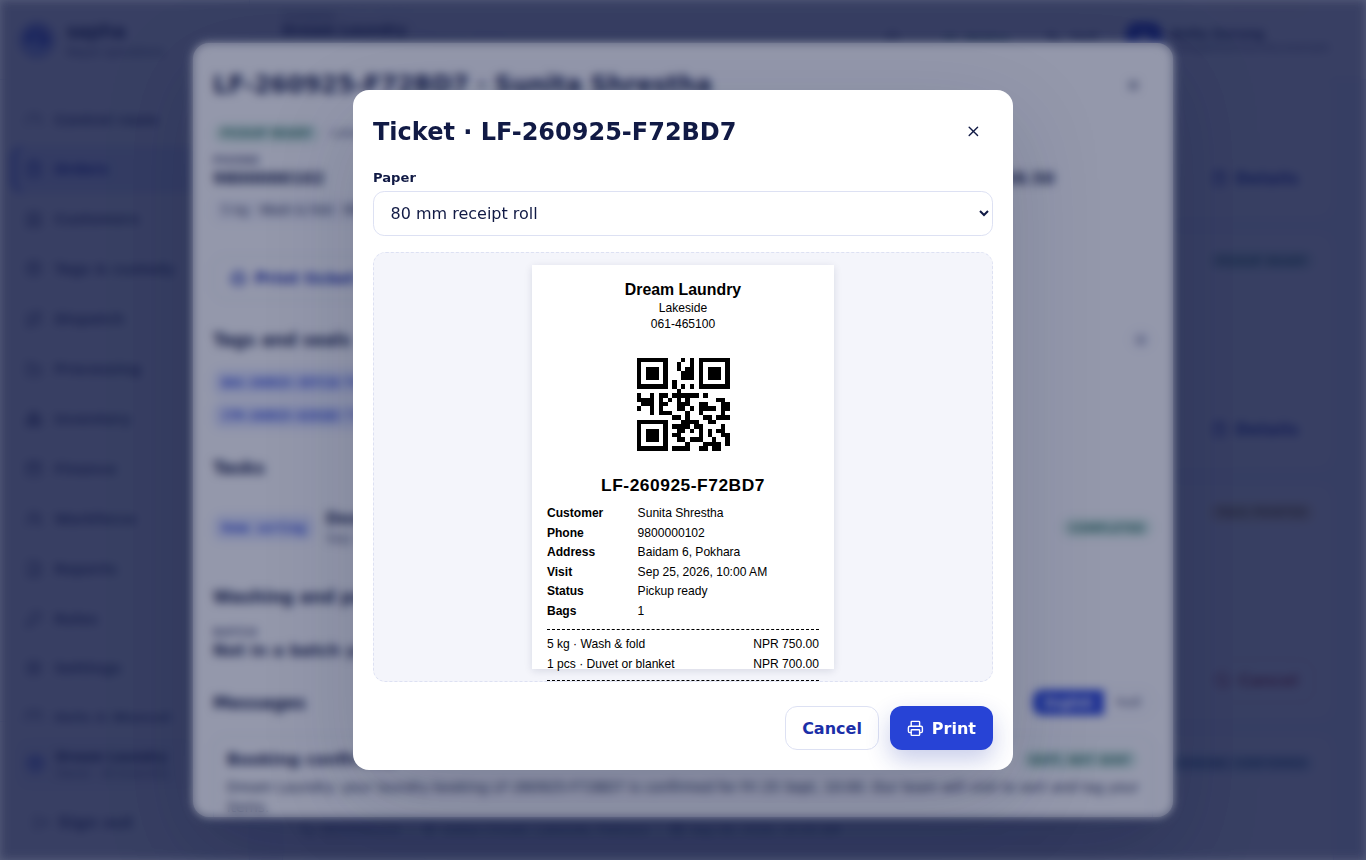
Print ticket in the order window prints the customer's copy on an 80 mm or 58 mm receipt roll or an A5 sheet: the branch name and phone, a QR code, the order, the items with prices, the total and the number of bags. The customer scans the QR code with their own phone to follow the order.
Scanning with a phone camera
Wherever a Scan button or a camera icon appears (Scan order or tag on Orders, the code box in Tags & custody), the phone or laptop camera opens. Hold the label inside the frame; it is read automatically. The first time, the browser asks to allow the camera.
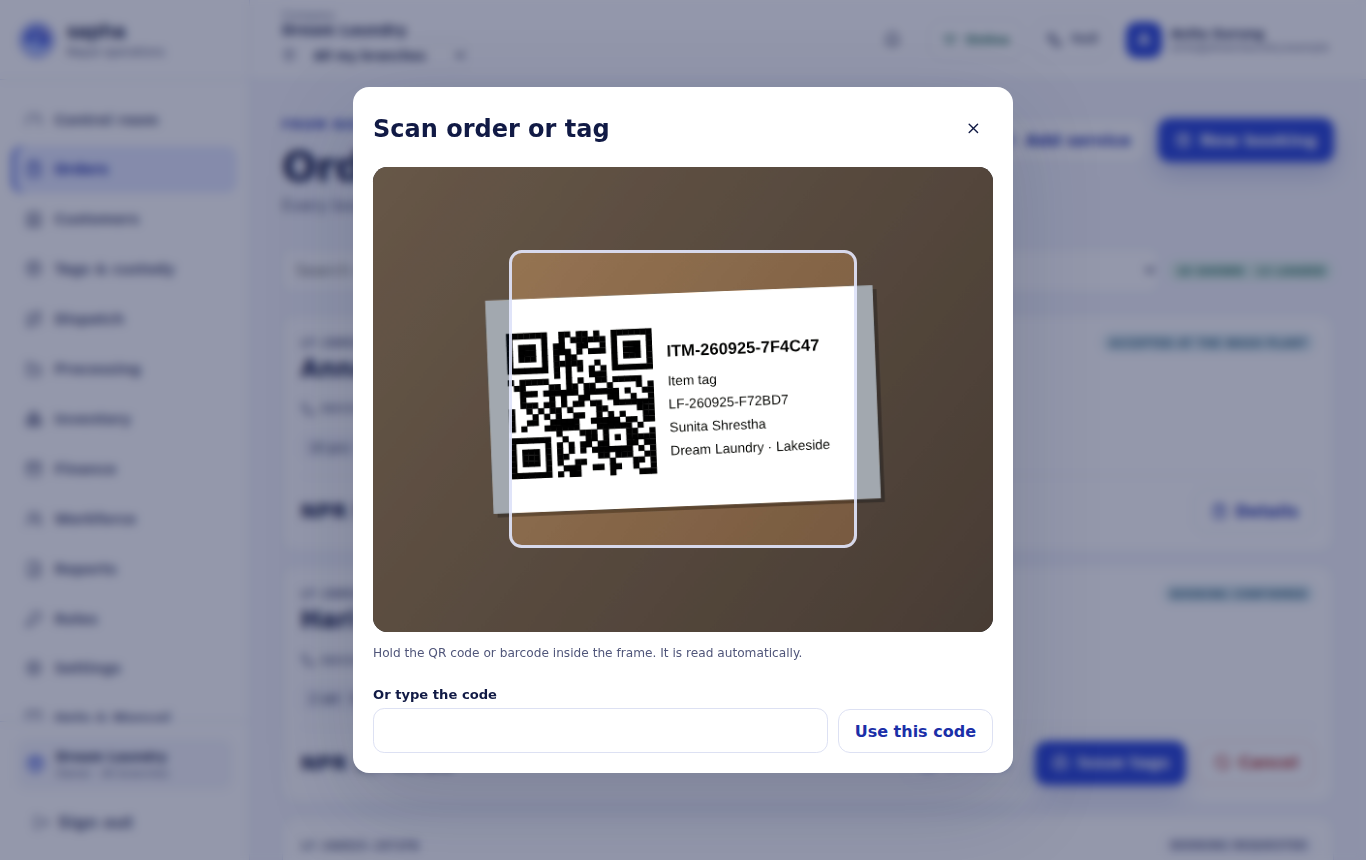
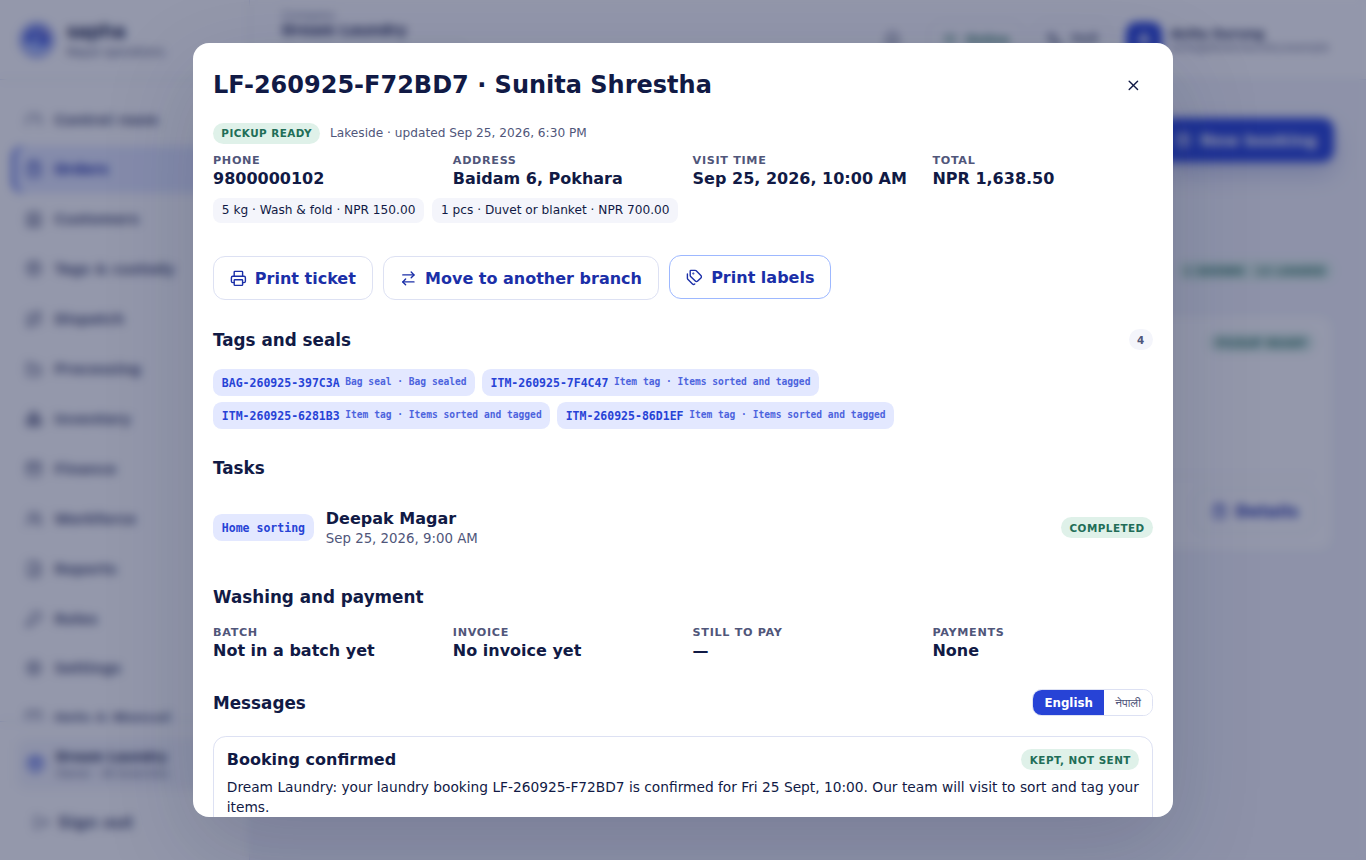
- No camera, or the camera is blocked: type the code in Or type the code under the camera picture.
- Handheld USB or Bluetooth scanners work too: click in the code box and scan; the scanner types the code.
- On a phone with a front and back camera, Switch camera changes between them; Light turns on the torch where the phone allows it.
- The camera works only on the secure Sapha address, which is the normal one.