Working manual
Home visits, pickup and delivery
Assign home-sorting visits, pickups and deliveries, follow them on the phone, and confirm delivery with the customer's code.
Assigning a task
Create a pickup or delivery task
- Who can do this
- Reception, a manager or the owner.
- What it achieves
- A home visit, pickup or delivery assigned to one person, who sees it on their phone.
Before you start
- Home sorting: the order's tags are issued.
- Pickup: the order is sealed and ready for pickup.
- Delivery: the order is packed.
Steps
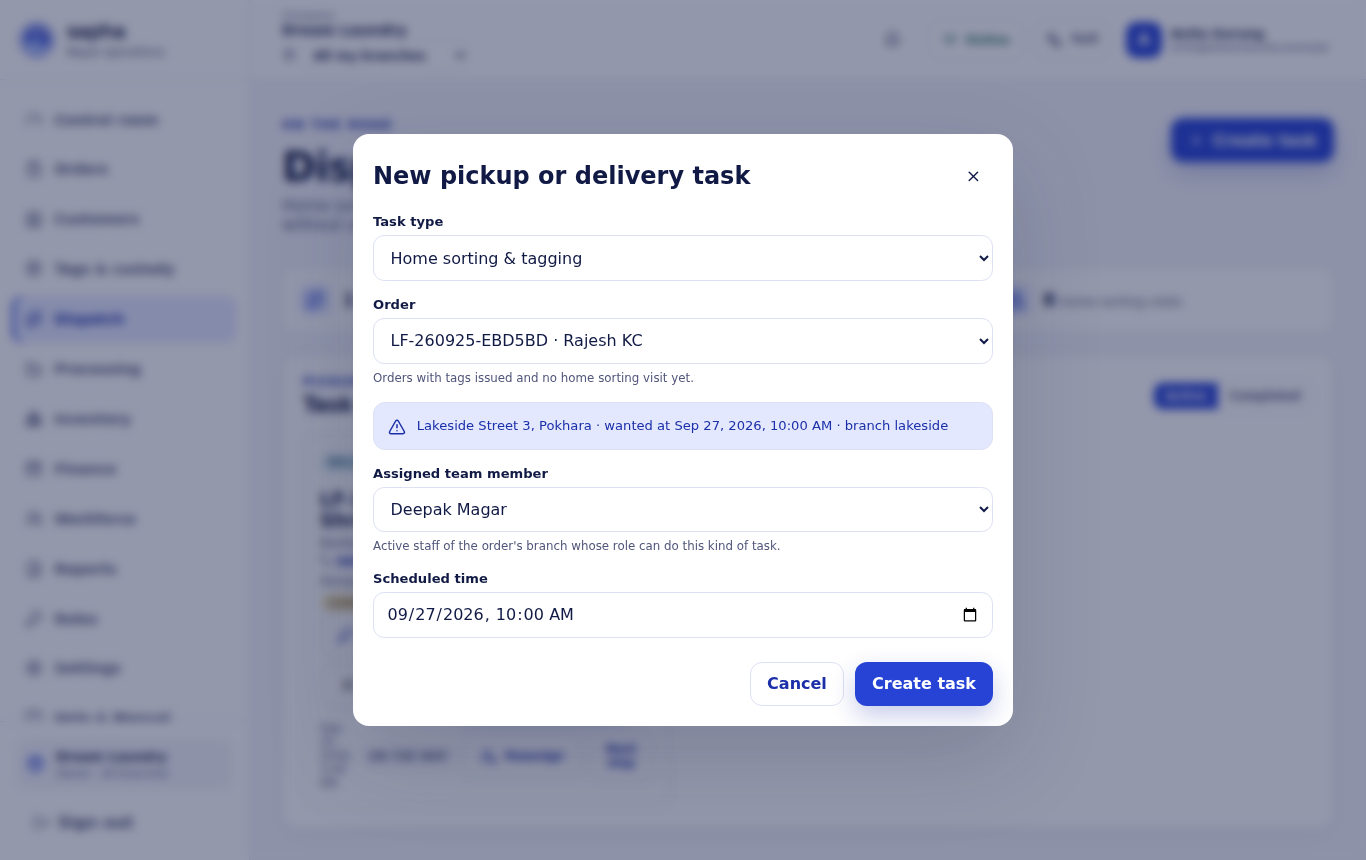
- RequiredOpen Dispatch and choose Create task.
- RequiredChoose the task type: Home sorting & tagging, Pickup or Delivery.
- RequiredChoose the order. Only orders ready for that task type are offered.
- RequiredChoose the team member. Only active people of the order's branch whose role can do this task are offered.
- RequiredCheck the scheduled time and choose Create task.
What should happen next
The task appears on the assignment board and on the assigned person's phone.
If it does not work
- The order is missing: it has not reached the step this task needs, or it already has this task.
On the road
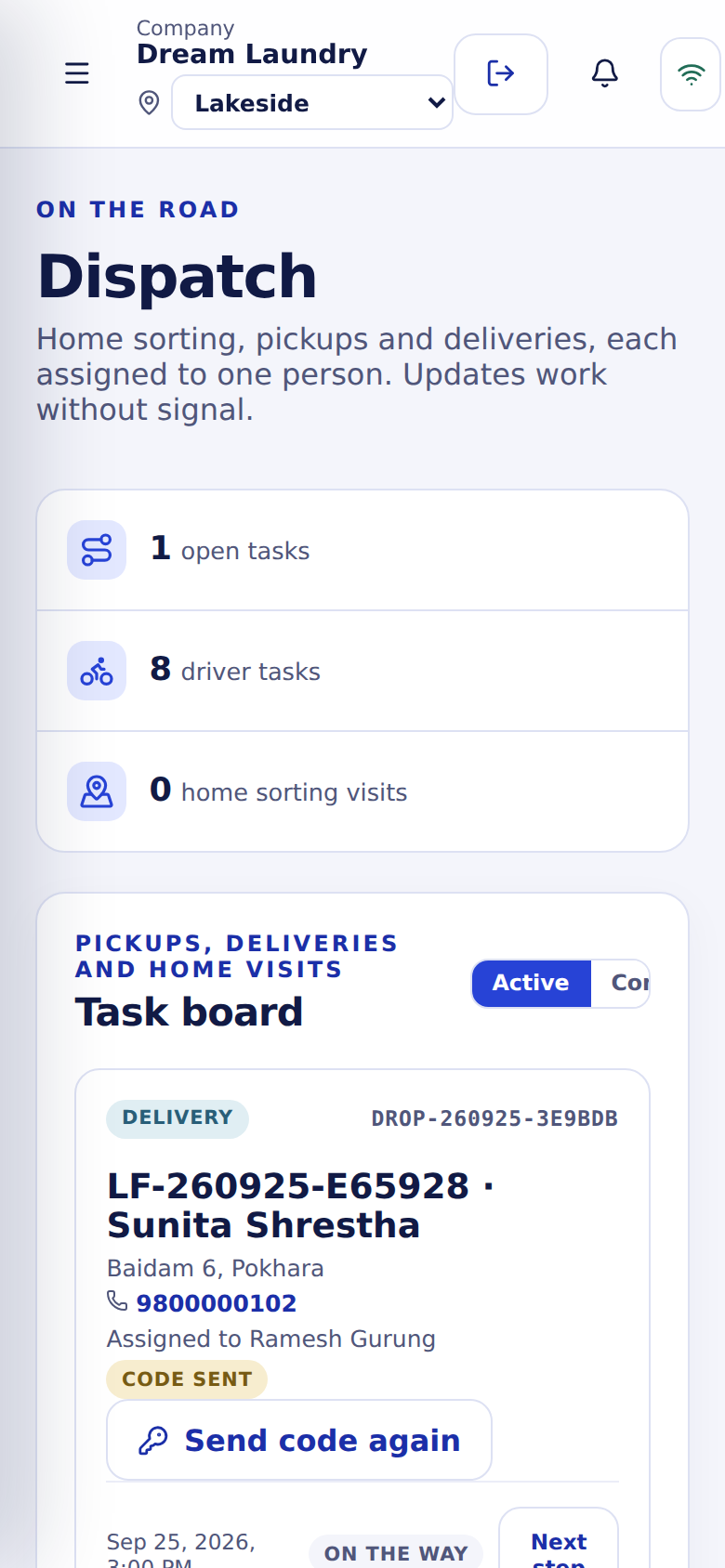
The assigned person moves the task on with Next step: Assigned → On the way → Arrived → Handed over → Completed. At the door they scan the tags (picked up, out for delivery, delivered). A manager can hand an unfinished task to someone else with Reassign and a reason.
Confirming delivery with the customer's code
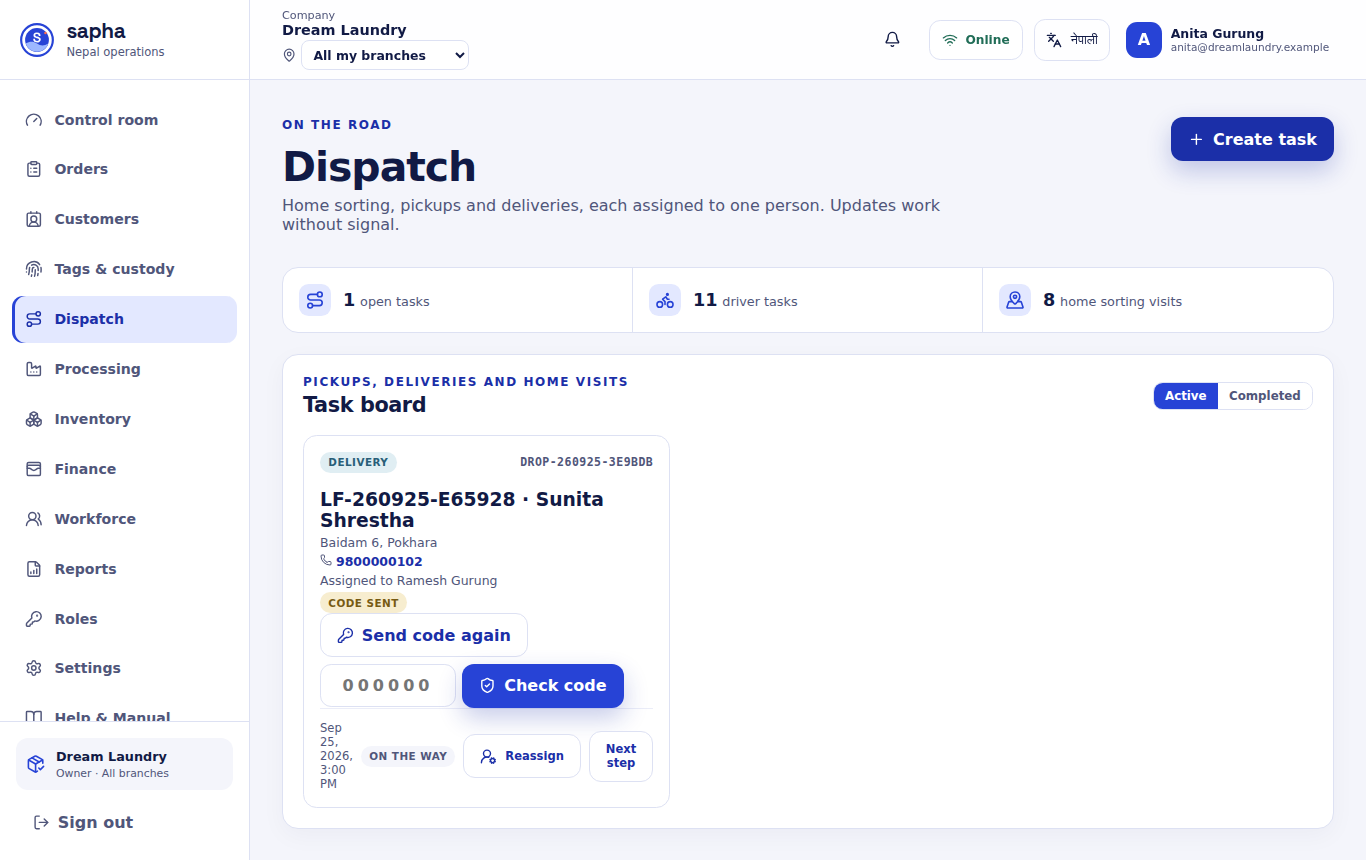
At the door the driver chooses Send delivery code (Send code again afterwards). Sapha creates a six-digit delivery code for the customer. The driver never sees the code: someone else (reception, a manager or the owner) types the code the customer reads out and chooses Check code on the task, for example on a phone call from the door. Only then can the driver complete the delivery and scan the items as delivered.
Where the code goes depends on the company's setup: the customer's phone notification if they turned on updates on their tracking page, their email, or an SMS when an SMS account is connected.
- A code expires after a while; sending it again makes a new one.
- After too many wrong tries the code locks. The Sapha team can clear a locked code with a recorded reason.
- Reassigning a delivery destroys its code; the new driver sends a new one.