Working manual
Getting started
What Sapha is, how to sign in, how the screen is laid out, and how to switch language.
What Sapha is
Sapha runs a laundry from booking to delivery: customers, orders, the tags and seals on every item, pickup and delivery, washing batches, stock, invoices and payments, the daily cash count, and the people doing the work. Every handover is recorded, so at any moment you can see where an item is and who had it last.
The pictures in this manual show Dream Laundry, an example laundry in Pokhara with two branches, Lakeside and Chipledhunga. Its staff, customers, phone numbers and orders are made up. Your own workspace looks the same, with your own company's work in it.
Signing in
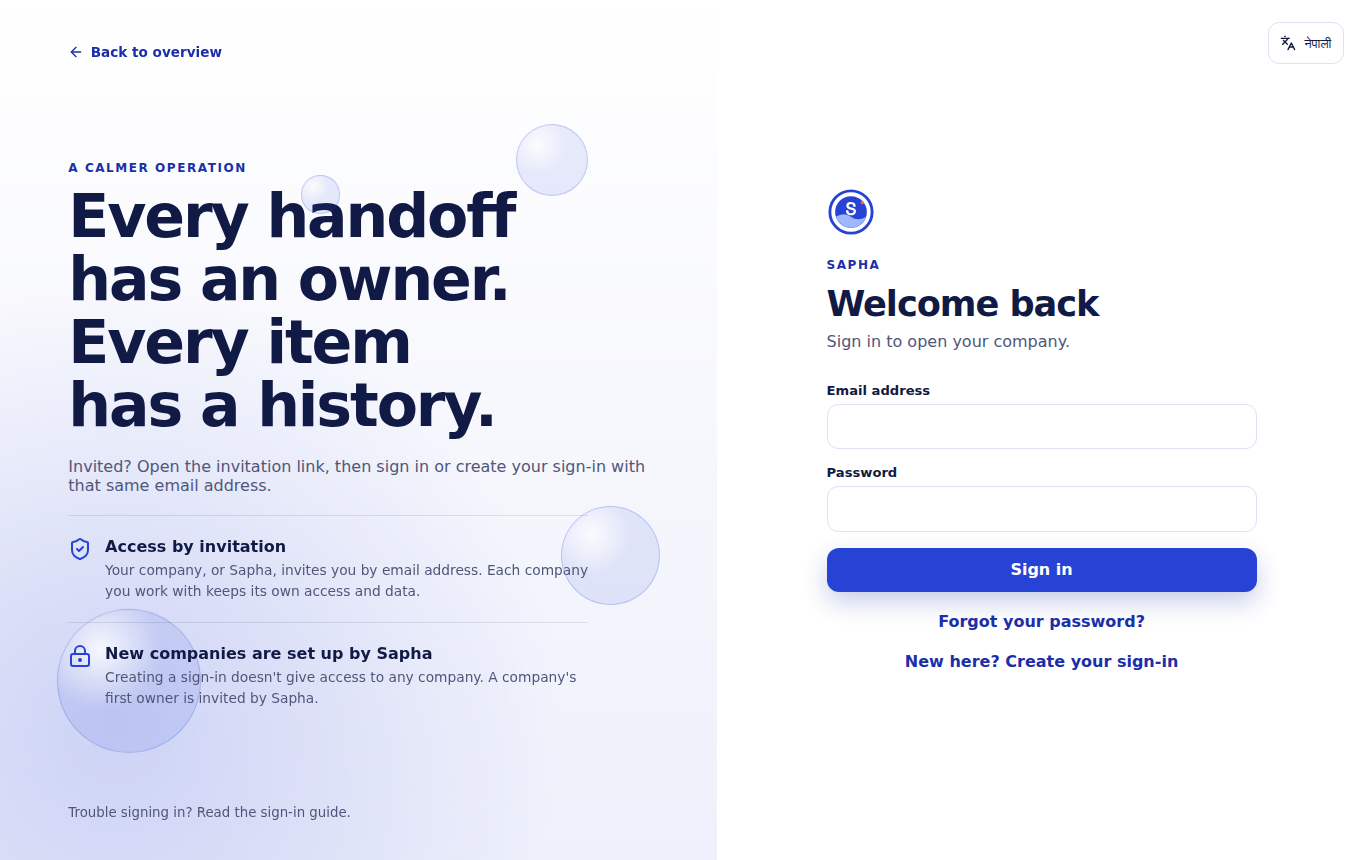
Open the Sapha address in any browser, on a computer, tablet or phone, and choose Team sign in. Enter the email address your company invited and your password. The language button in the corner switches the sign-in page between English and Nepali.
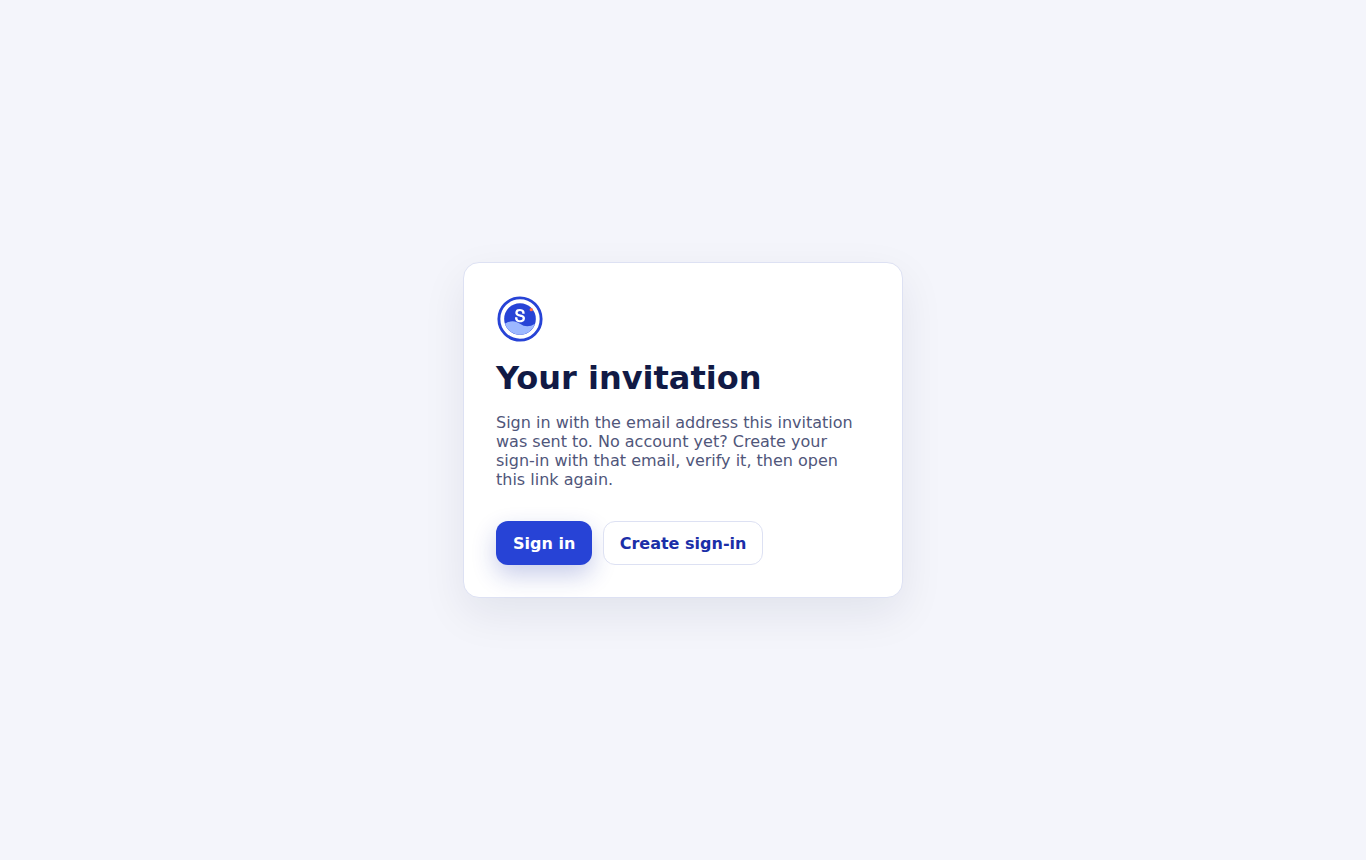
A new team member receives an invitation link from their company. The invitation is valid for seven days.
- Open the invitation link and choose Create sign-in.
- Enter your name, the email address the invitation was sent to, and a password of at least 12 characters.
- Sapha sends an email to confirm the address. Open it and follow the link.
- Sign in, open the invitation link again and choose Accept and open. You are now in your company's workspace.
- If you already have a Sapha sign-in, for example from another company, choose Sign in instead and then accept.
Forgot your password? Choose Forgot your password? on the sign-in page. Sapha emails you a link to a page where you choose a new one. If an invitation has expired, ask the person who manages your company's access to send a new one.
Choosing your company and branch
If you work for more than one company, Sapha asks which one you are working for after you sign in. If you work in more than one branch of the same company, it then asks which branch you are working in now. You see and record only that branch's work until you switch.
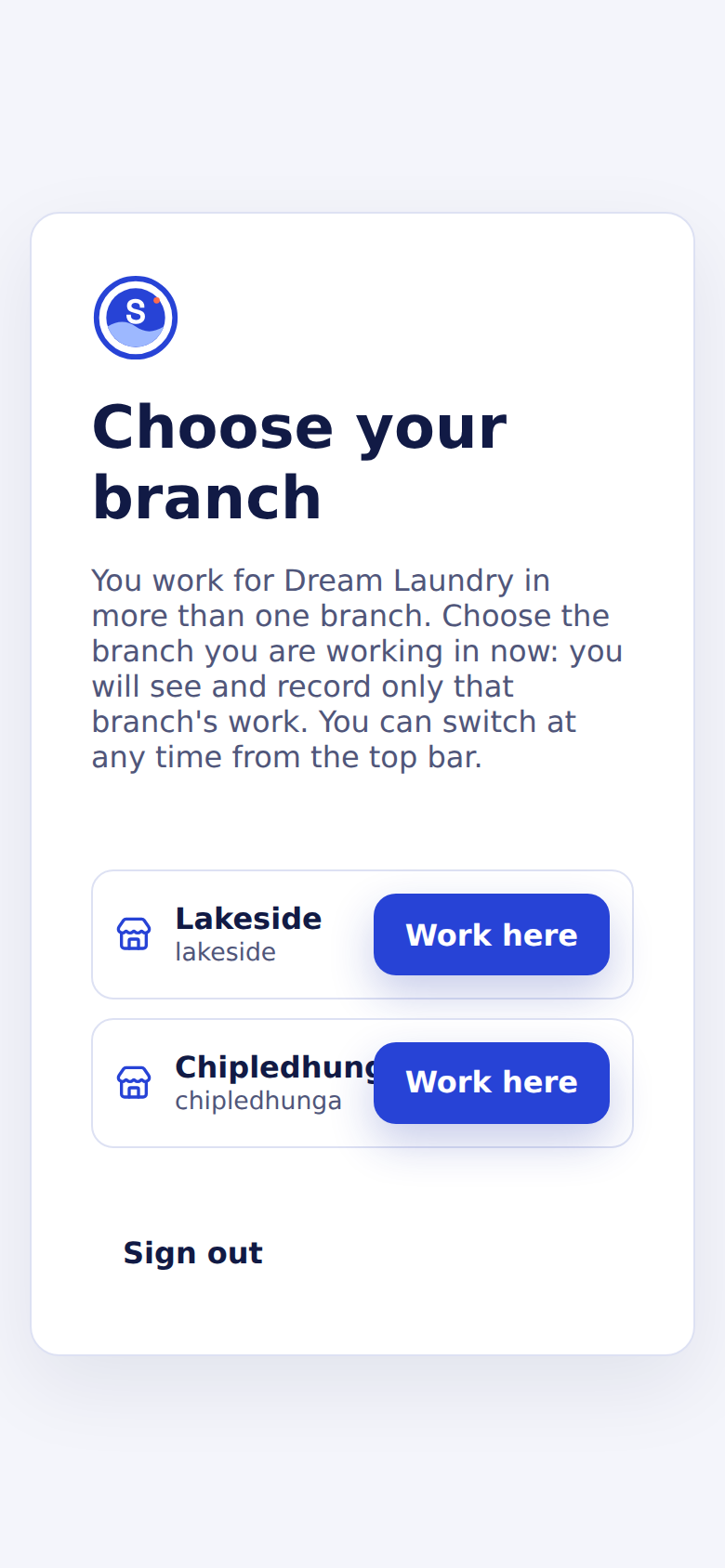
Owners and managers can also choose All my branches to see every branch together. Anything new they create (a booking, a customer, a batch) belongs to one branch, so Sapha then asks which branch it is for. The full story is in Branches and your working branch.
The screen
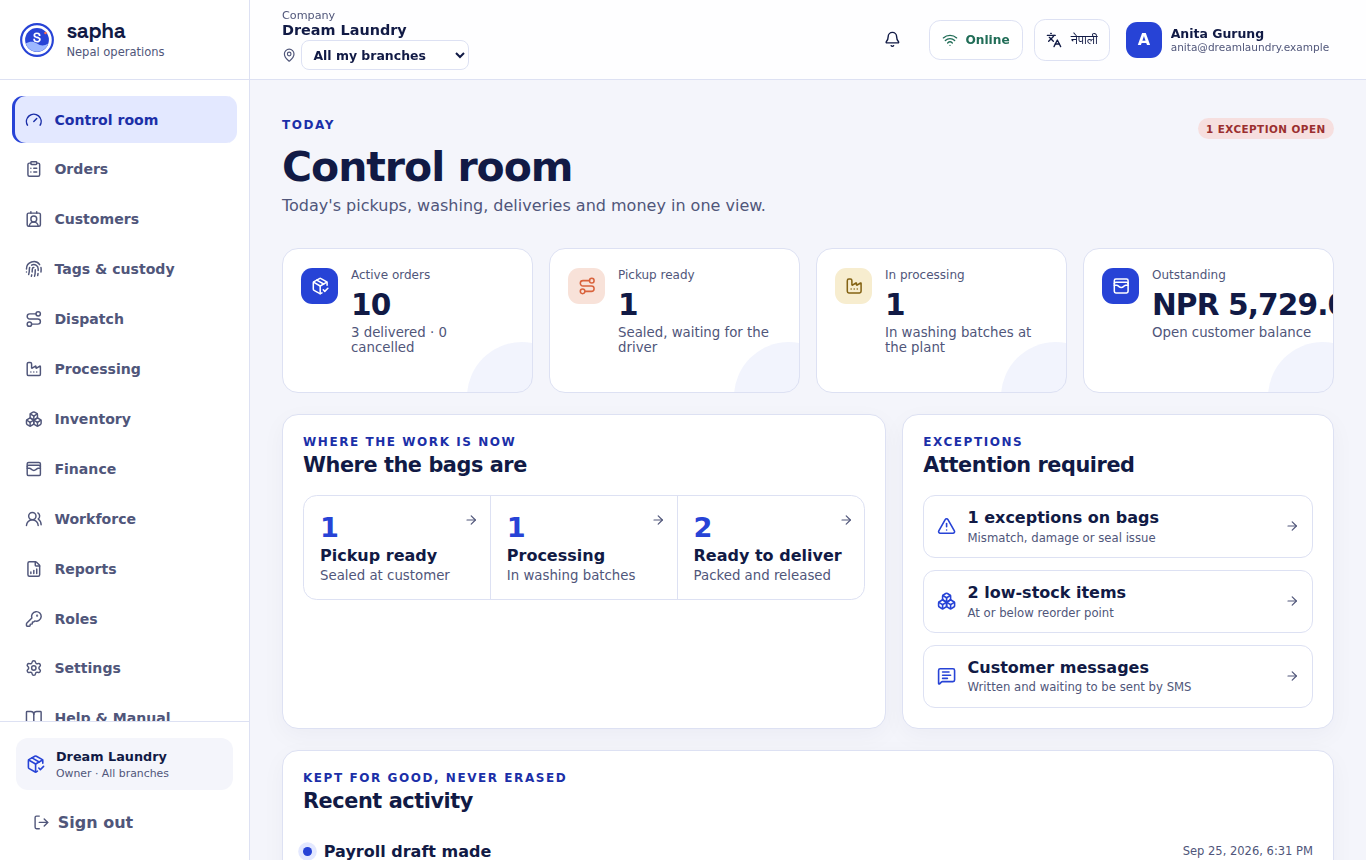
| Part of the screen | What it is for |
|---|---|
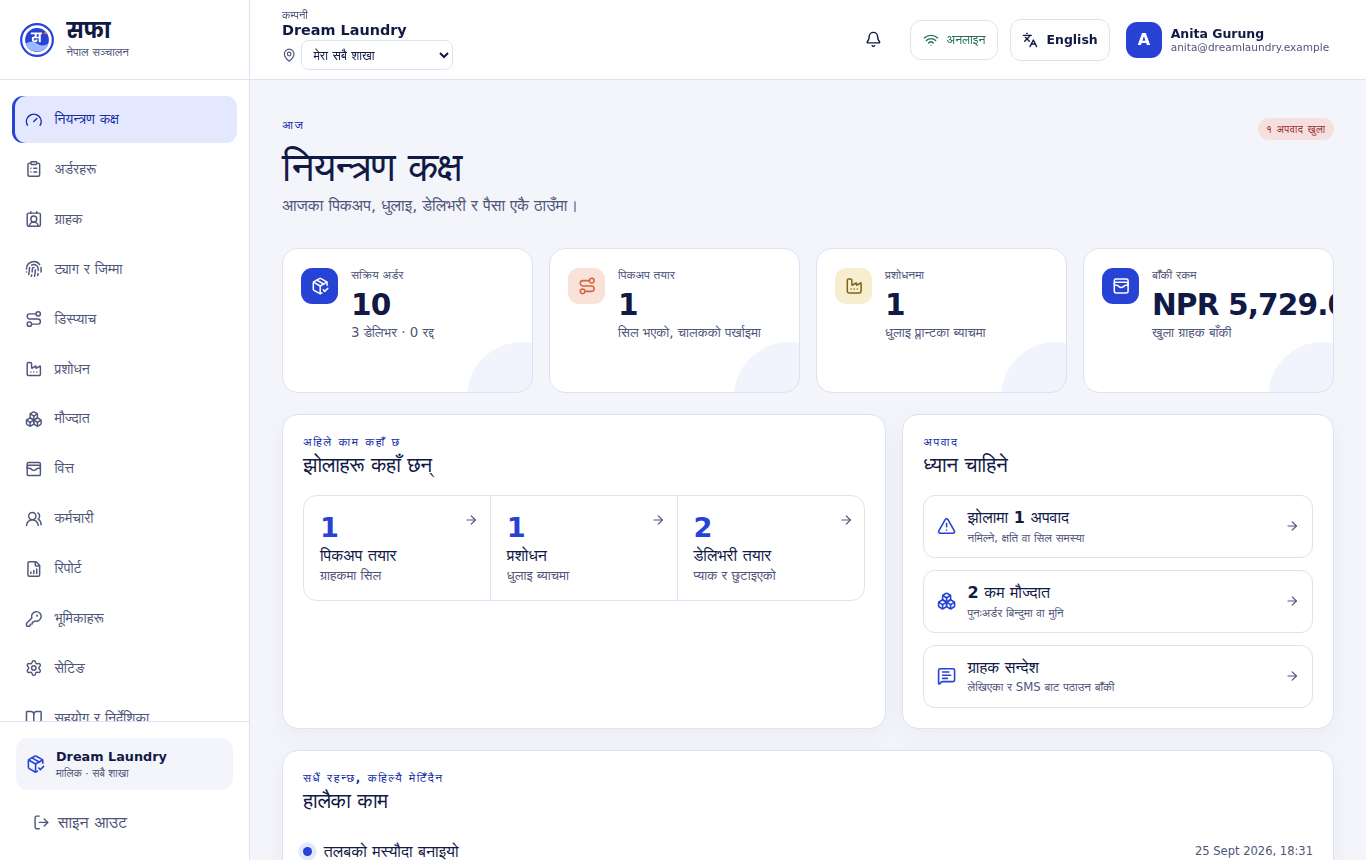
| Menu on the left | The screens your role opens. Someone who cannot see a screen simply does not have it in the menu; that is not a fault. On a phone the menu hides behind the button in the top corner. |
| Branch box in the top bar | The branch you are working in. Change it at any time; the screens reload for that branch. |
| Clock in / Clock out | Starts and ends your shift in the branch you are working in. See Clocking in and attendance. |
| Bell | Turns on notifications on this device, for example when a task is assigned to you. |
| Online / Offline | Shows whether the device is connected. Scans and updates made offline are kept on the device and sent in order when the connection returns. |
| Language button | Switches every menu, button and label between English and Nepali. The choice is remembered on this device. |

Not everyone lands on Control room. Sapha opens the first screen in the menu that your permissions allow; a driver, for example, lands on Tags & custody and finds the day's tasks under Dispatch.
English and Nepali
Press the language button in the top bar. The menus, buttons, labels and the brand switch to Nepali (the name reads सफा), and back to English with the same button. The choice is shared between the public site, the sign-in page and the app on this device.
Using Sapha on a phone
Sapha works in the phone's browser; nothing has to be installed. To keep it one tap away, add it to the home screen: on Android use the browser menu and Install app or Add to Home screen; on iPhone tap Share, then Add to Home Screen. It then opens like an app, with the Sapha icon.
The phone's camera can read the QR codes on tags, seals and tickets wherever a Scan button appears. See Labels, tickets and scanning.